

INDEX + MATCH vs XLOOKUP Explained: Which Excel Lookup Method Should You Use?
INDEX + MATCH vs XLOOKUP Explained: Which Excel Lookup Method Should You Use?
Compare INDEX + MATCH and XLOOKUP with examples, syntax, advantages, disadvantages, and real-world use cases. Learn which Excel lookup method is best for beginners and professionals.
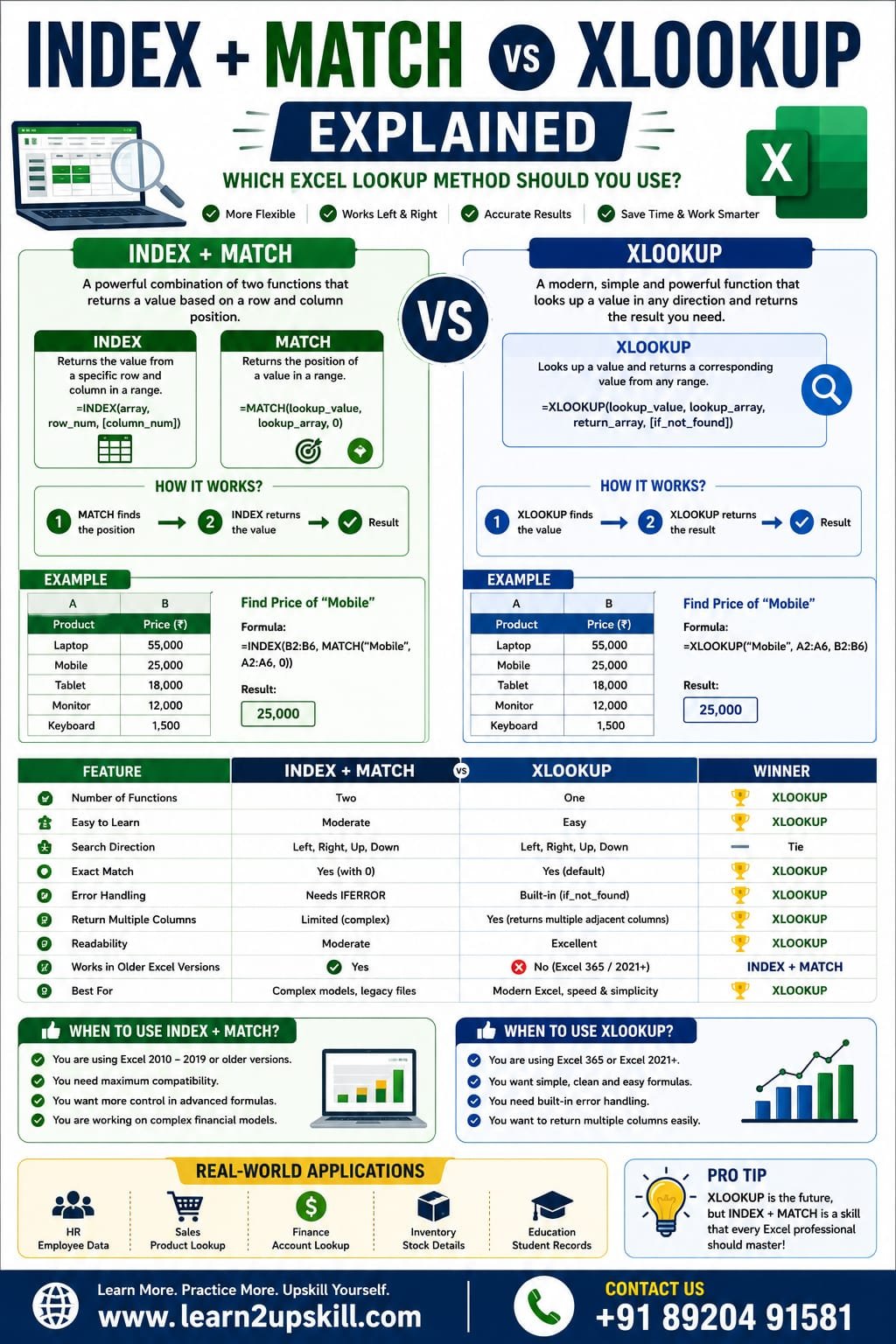
INDEX + MATCH vs XLOOKUP Explained
When working with large datasets in Microsoft Excel, finding the right information quickly is essential. For years, advanced Excel users relied on the powerful combination of INDEX + MATCH because it was more flexible than VLOOKUP.
Today, Microsoft offers XLOOKUP, a modern lookup function that simplifies many common lookup tasks while adding new capabilities. Both approaches are valuable, but knowing when to use each one will make you a more efficient Excel user.
In this guide, you’ll learn how INDEX + MATCH and XLOOKUP work, their key differences, and which one is the better choice for different situations.
What is INDEX?
The INDEX function returns the value from a specified row and column within a range.
Syntax
=INDEX(array,row_num,[column_num])
Example
Product| Price
Laptop| 55000
Mobile| 25000
Tablet| 18000
Formula:
=INDEX(B2:B4,2)
Result: 25000
What is MATCH?
The MATCH function returns the position of a value within a range.
Syntax
=MATCH(lookup_value,lookup_array,0)
Example
=MATCH(“Mobile”,A2:A4,0)
Result: 2
How INDEX + MATCH Works Together
By combining the two functions, Excel first finds the position of the lookup value and then returns the corresponding result.
Formula
=INDEX(B2:B6,MATCH(E2,A2:A6,0))
If cell E2 contains Laptop, Excel returns its price from column B.
What is XLOOKUP?
XLOOKUP is Microsoft’s newer lookup function designed to replace VLOOKUP and simplify many lookup tasks.
Syntax
=XLOOKUP(lookup_value,lookup_array,return_array)
Example
=XLOOKUP(E2,A2:A6,B2:B6)
The formula directly returns the matching value without combining multiple functions.
INDEX + MATCH vs XLOOKUP: Comparison Table
Feature| INDEX + MATCH| XLOOKUP
Number of Functions| Two| One
Easy to Learn| Moderate| Easy
Search Left or Right| Yes| Yes
Exact Match| Yes| Yes (default)
Error Handling| Requires IFERROR| Built-in
Multiple Return Columns| Limited| Yes
Readability| Moderate| Excellent
Performance| Excellent| Excellent
Excel Version| Works in older versions| Microsoft 365 & Excel 2021+
Example 1: Find Product Price
INDEX + MATCH
=INDEX(B2:B6,MATCH(E2,A2:A6,0))
XLOOKUP
=XLOOKUP(E2,A2:A6,B2:B6)
Both formulas return the same result.
Example 2: Lookup to the Left
Suppose the product name is in column B and the product ID is in column A.
Both INDEX + MATCH and XLOOKUP can return values from the left, something VLOOKUP cannot do.
Advantages of INDEX + MATCH
– Works in older Excel versions.
– Flexible for complex lookups.
– Excellent for large datasets.
– Popular in Excel interviews.
– Can be combined with advanced formulas for dynamic solutions.
Advantages of XLOOKUP
– Simple syntax.
– Exact match by default.
– Built-in “Not Found” message.
– Supports vertical and horizontal lookups.
– Easier to read and maintain.
– Returns multiple adjacent columns in supported versions.
Disadvantages of INDEX + MATCH
– More difficult for beginners.
– Longer formulas.
– Requires IFERROR for custom error messages.
– Can be harder to troubleshoot.
Disadvantages of XLOOKUP
– Not available in Excel 2016 and older versions.
– Requires Microsoft 365 or Excel 2021 and later.
When Should You Use INDEX + MATCH?
Choose INDEX + MATCH when:
– You work with older Excel versions.
– Your organization still uses legacy spreadsheets.
– You need compatibility with colleagues using older software.
– You’re preparing for Excel interviews that test traditional lookup methods.
When Should You Use XLOOKUP?
Choose XLOOKUP when:
– You’re using Microsoft 365 or Excel 2021+.
– You want shorter, cleaner formulas.
– You need built-in error handling.
– You’re creating new dashboards, reports, or business models.
Real-World Applications
HR Department
Find employee names, departments, salaries, or joining dates.
Sales Team
Retrieve product prices, discounts, and customer information.
Finance
Look up account codes, invoices, and financial records.
Inventory Management
Search stock quantities, suppliers, and warehouse locations.
Education
Match student IDs with marks, attendance, or grades.
Common Mistakes to Avoid
INDEX + MATCH
– Using different-sized lookup and return ranges.
– Forgetting to set MATCH to exact match (0).
– Missing IFERROR when handling unavailable values.
XLOOKUP
– Using it in unsupported Excel versions.
– Selecting the wrong lookup or return array.
Frequently Asked Questions (FAQs)
Is XLOOKUP better than INDEX + MATCH?
For most modern Excel users, XLOOKUP is easier to learn and maintain. However, INDEX + MATCH remains valuable because it works in older Excel versions and is still widely used.
Which lookup method is faster?
For everyday business use, both perform very well. The difference in speed is usually small unless you’re working with extremely large datasets.
Should beginners learn INDEX + MATCH?
Yes. Learning INDEX + MATCH helps you understand how Excel lookup functions work and prepares you for older workbooks you may encounter in the workplace.
Can XLOOKUP replace INDEX + MATCH?
In many scenarios, yes. However, INDEX + MATCH is still important for compatibility with older versions of Excel and for understanding legacy spreadsheets.
Best Learning Path
- Learn VLOOKUP.
- Master INDEX + MATCH.
- Upgrade to XLOOKUP.
- Practice with real business datasets.
- Build dashboards and reports using lookup functions.
Following this progression gives you a strong foundation for interviews and real-world Excel projects.
Final Thoughts
Both INDEX + MATCH and XLOOKUP are powerful lookup solutions in Excel.
If you’re working with modern versions of Excel, XLOOKUP is generally the best choice because it’s simpler, more readable, and includes built-in features that reduce errors. On the other hand, INDEX + MATCH remains an essential skill for working with older workbooks and understanding advanced Excel techniques.
The best Excel professionals know both methods and choose the one that fits their project and software version.
At Learn2Upskill, we help students and professionals master Excel through practical tutorials, real-world examples, and career-focused learning resources.
Visit: www.learn2upskill.com
Contact Us: +91 89204 91581
Keep Learning. Keep Growing. Keep Upskilling.
You May Also Like
How to Use Copilot in Excel for Faster Analysis Learn how to use Microsoft Copilot in Excel to analyze data...
-
-
July 21, 2026
Python in Excel Learn how to use Python in Microsoft Excel with this beginner-friendly guide. Discover setup, syntax, examples, benefits,...
-
-
July 20, 2026
Conditional Formatting Tricks You Must Know) Learn the best Conditional Formatting tricks in Excel with practical examples. Highlight duplicates, overdue...
-
-
June 12, 2026