

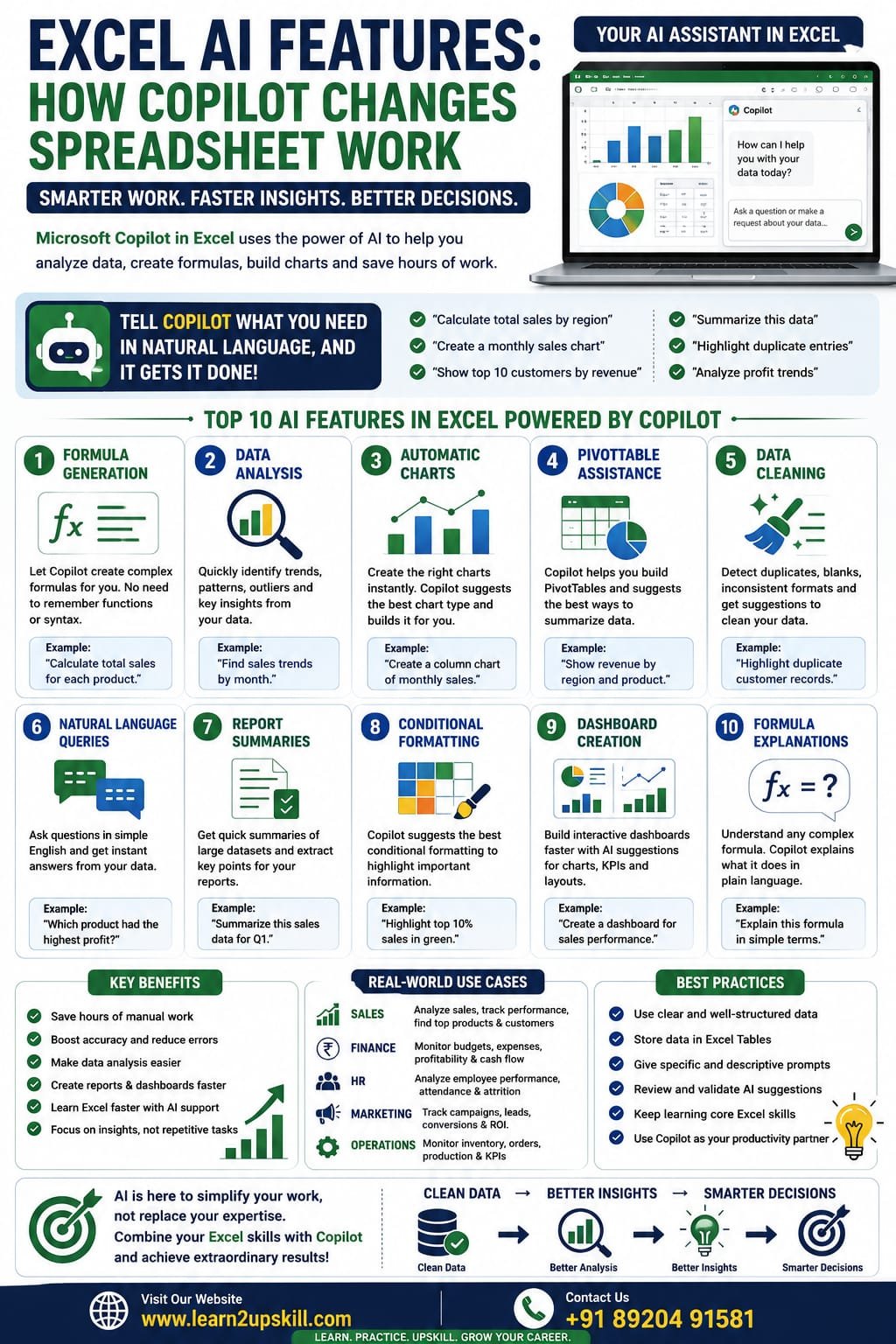
How Microsoft Copilot Changes Spreadsheet Work
Excel AI Features: How Microsoft Copilot Changes Spreadsheet Work
Discover how Microsoft Copilot in Excel uses AI to automate data analysis, create formulas, generate charts, summarize data, and boost productivity with real-world examples.
Focus Keyword: Excel AI Features
Excel AI Features: How Microsoft Copilot Changes Spreadsheet Work
Artificial Intelligence (AI) is transforming the way people work, and Microsoft Excel is no exception. With the introduction of Microsoft Copilot for Excel, users can analyze data, generate formulas, build charts, summarize information, and automate repetitive tasks using natural language.
Instead of spending hours writing complex formulas or manually creating reports, you can simply describe what you want, and Copilot helps you complete the task faster.
Whether you’re a student, accountant, HR professional, financial analyst, marketer, business owner, or data analyst, learning Excel’s AI-powered features can significantly improve your productivity.
In this guide, you’ll learn what Microsoft Copilot is, its key AI features, practical use cases, benefits, limitations, and tips for getting the most from it.
What Is Microsoft Copilot in Excel?
Microsoft Copilot is an AI-powered assistant integrated into supported Microsoft 365 applications, including Excel. It uses generative AI to help users interact with spreadsheets using everyday language.
Instead of memorizing formulas or searching through menus, you can ask questions such as:
– “Calculate total sales by region.”
– “Create a monthly sales chart.”
– “Highlight duplicate entries.”
– “Summarize this dataset.”
– “Show the top 10 customers by revenue.”
Copilot then suggests formulas, charts, PivotTables, summaries, or other actions based on your request.
Why Is AI Important in Excel?
Traditional spreadsheet work often involves:
– Writing complex formulas
– Cleaning data
– Creating Pivot Tables
– Designing charts
– Building dashboards
– Analyzing large datasets
AI helps automate many of these repetitive tasks, allowing you to focus more on interpreting results and making decisions.
Top AI Features in Excel
- Formula Generation
One of Copilot’s most useful capabilities is generating formulas from plain-language requests.
Example
Instead of remembering a complex formula, you can ask:
«”Calculate the total sales for each region.”»
Copilot suggests an appropriate formula based on your data.
This is especially helpful for beginners and users working with advanced functions.
- Data Analysis
Copilot can analyze your dataset and identify:
– Trends
– Patterns
– Outliers
– Top-performing categories
– Seasonal changes
Instead of manually reviewing thousands of rows, AI summarizes key insights in seconds.
- Automatic Charts
Creating charts becomes much easier.
Ask Copilot:
«”Create a column chart showing monthly sales.”»
It recommends a suitable chart and generates it for you, saving time on formatting and setup.
- PivotTable Assistance
Copilot can help build PivotTables by suggesting useful summaries based on your data.
Examples:
– Sales by product
– Revenue by region
– Employee performance
– Monthly expenses
This is particularly useful for users who are new to PivotTables.
- Data Cleaning Suggestions
AI can help identify:
– Duplicate records
– Missing values
– Inconsistent formatting
– Unexpected data patterns
While you should always review suggested changes, Copilot can speed up the initial cleanup process.
- Natural Language Queries
Instead of building formulas manually, you can ask questions such as:
– Which product had the highest sales?
– What is the average monthly revenue?
– Which region generated the lowest profit?
Copilot interprets your request and provides answers based on your spreadsheet.
- Report Summaries
For large datasets, Copilot can generate concise summaries highlighting key metrics and trends, making it easier to prepare reports or presentations.
- Conditional Formatting Suggestions
AI can recommend conditional formatting to highlight:
– Top performers
– Duplicate values
– Low inventory
– Values above or below targets
This makes important information stand out visually.
- Dashboard Support
Copilot can assist with dashboard creation by recommending charts, KPIs, and layouts based on your data, helping you build reports more efficiently.
- Formula Explanations
If you inherit a workbook with unfamiliar formulas, Copilot can help explain what a formula is doing in plain language, making it easier to understand and maintain spreadsheets.
Real-World Use Cases
Sales
– Analyze monthly revenue
– Compare product performance
– Identify top customers
Finance
– Summarize expenses
– Track budgets
– Review cash flow
HR
– Analyze attendance
– Monitor employee performance
– Summarize recruitment data
Marketing
– Evaluate campaign results
– Compare lead sources
– Analyze conversion rates
Education
– Review student performance
– Analyze attendance
– Track assignment scores
Benefits of Microsoft Copilot in Excel
– Saves time on repetitive tasks
– Makes advanced features more accessible
– Helps users learn Excel functions
– Speeds up report creation
– Improves productivity
– Encourages data-driven decision-making
Limitations to Keep in Mind
– Copilot is available only with supported Microsoft 365 plans and regions.
– AI-generated suggestions should always be reviewed for accuracy.
– Complex business scenarios may still require manual formulas or advanced Excel knowledge.
– Data quality remains important—AI works best with well-structured datasets.
Tips for Using Copilot Effectively
– Organize your data with clear headers.
– Store data in Excel Tables when possible.
– Use descriptive prompts.
– Verify AI-generated formulas and analyses.
– Continue learning core Excel skills alongside AI tools.
Frequently Asked Questions (FAQs)
Does Copilot replace Excel formulas?
No. Copilot helps generate and explain formulas, but understanding core Excel functions remains valuable for troubleshooting and advanced work.
Can beginners use Copilot?
Yes. Copilot is especially helpful for beginners because it reduces the need to memorize formulas and menu locations.
Does Copilot create charts?
Yes. It can recommend and generate charts based on your data and your natural-language requests.
Is Copilot available in every Excel version?
No. Copilot is available in supported Microsoft 365 environments and requires an eligible subscription and supported version of Excel.
Best Practices
– Learn Excel fundamentals before relying entirely on AI.
– Double-check AI-generated outputs.
– Protect sensitive data according to your organization’s policies.
– Keep your data clean and well-structured for the best results.
– Use AI as a productivity assistant, not a replacement for critical thinking.
Final Thoughts
Microsoft Copilot is changing the way people work with spreadsheets by making data analysis, reporting, and formula creation faster and more intuitive. It allows users to interact with Excel using natural language while reducing repetitive work.
However, the most effective Excel users combine AI tools with a strong understanding of Excel fundamentals. By mastering formulas, PivotTables, charts, dashboards, and data cleaning—and then using Copilot to accelerate those tasks—you’ll be well prepared for modern workplaces.
At Learn2Upskill, we help students and professionals build practical Excel and AI skills through real-world tutorials and career-focused learning resources.
Visit: www.learn2upskill.com
Contact Us: +91 89204 91581
Learn Excel. Embrace AI. Build Your Future.
You May Also Like
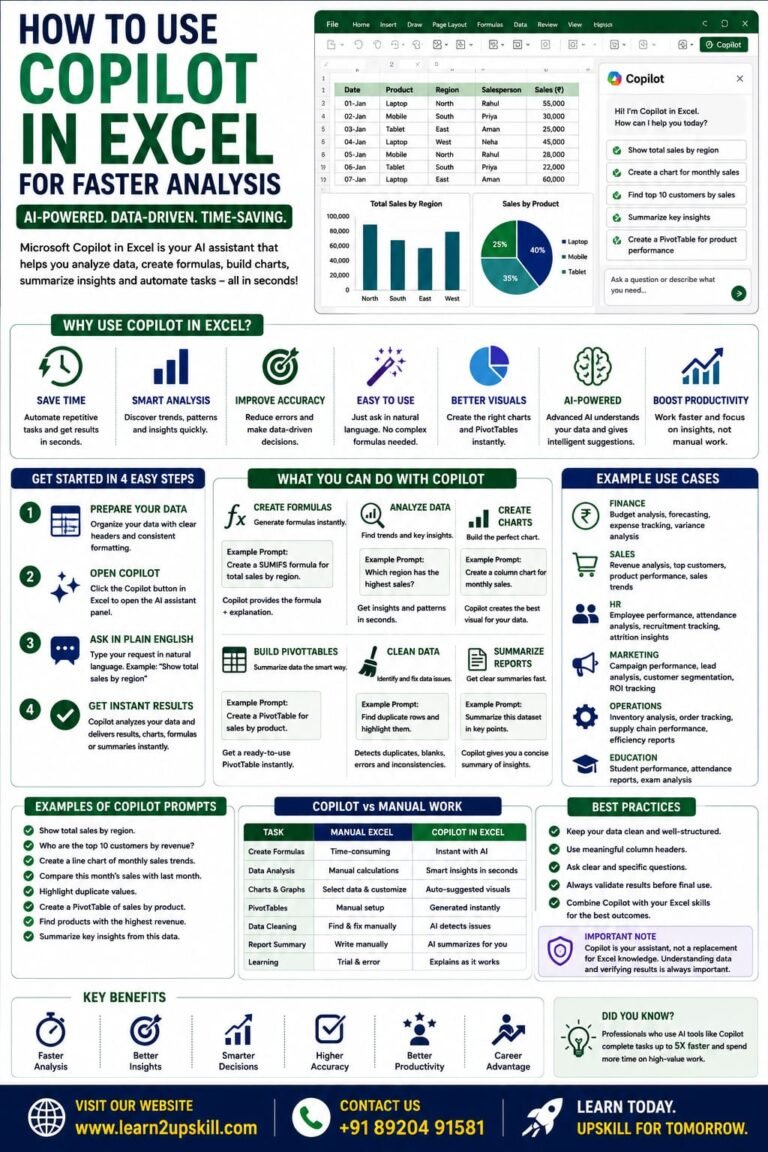
How to Use Copilot in Excel for Faster Analysis Learn how to use Microsoft Copilot in Excel to analyze data...
-
-
July 21, 2026
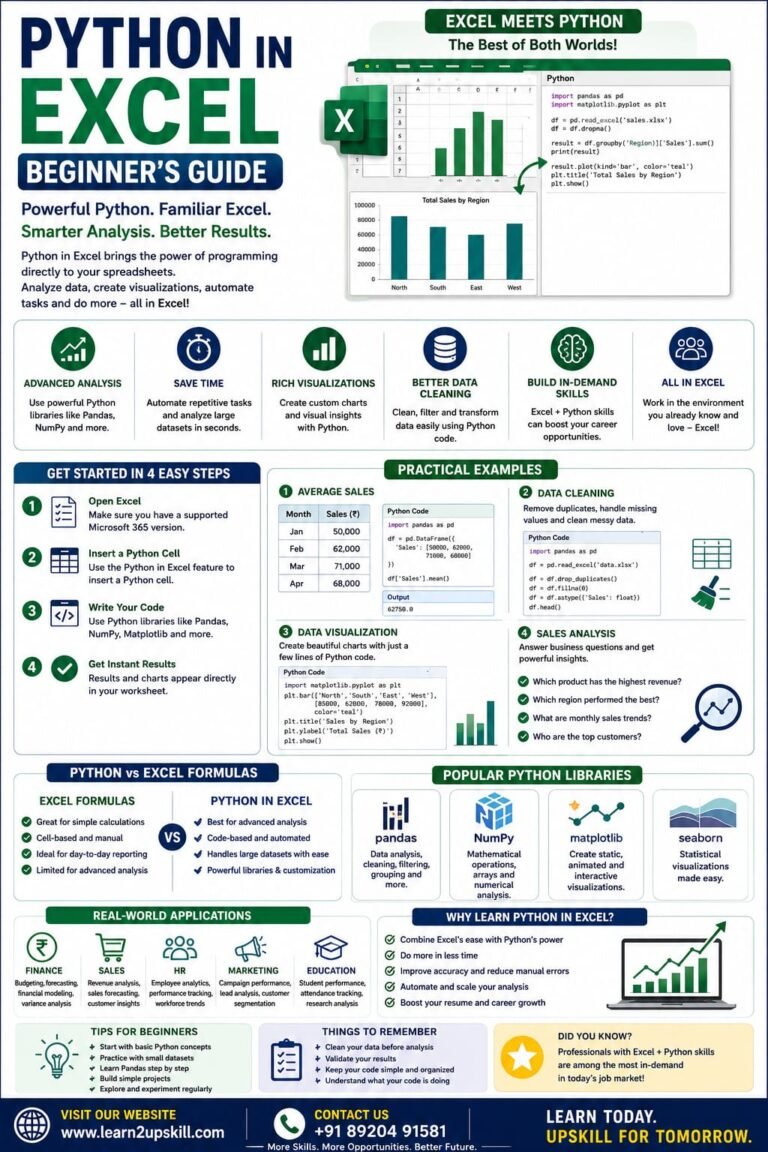
Python in Excel Learn how to use Python in Microsoft Excel with this beginner-friendly guide. Discover setup, syntax, examples, benefits,...
-
-
July 20, 2026
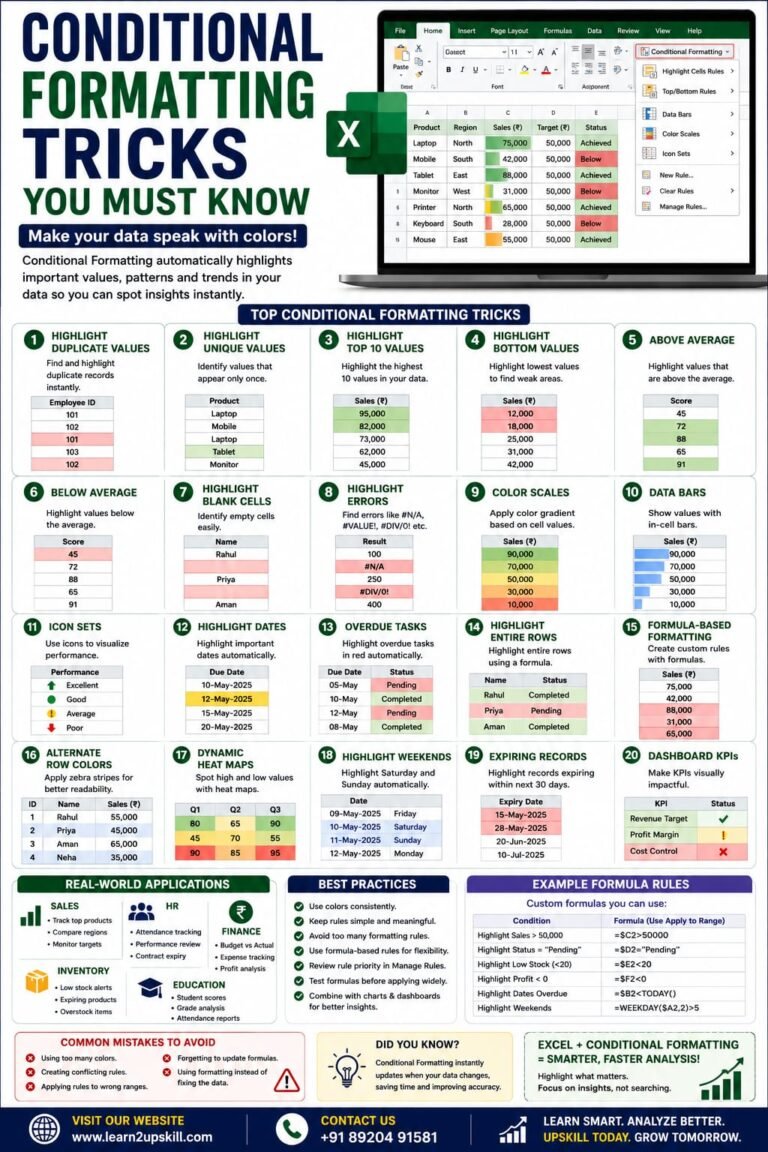
Conditional Formatting Tricks You Must Know) Learn the best Conditional Formatting tricks in Excel with practical examples. Highlight duplicates, overdue...
-
-
June 12, 2026