

Data Cleaning in Excel Like a Pro
Data Cleaning in Excel Like a Pro
Learn how to clean data in Excel using TRIM, CLEAN, Find & Replace, Remove Duplicates, Flash Fill, Text to Columns, Power Query, and other professional techniques.
Focus Keyword: Data Cleaning in Excel
Data Cleaning in Excel Like a Pro
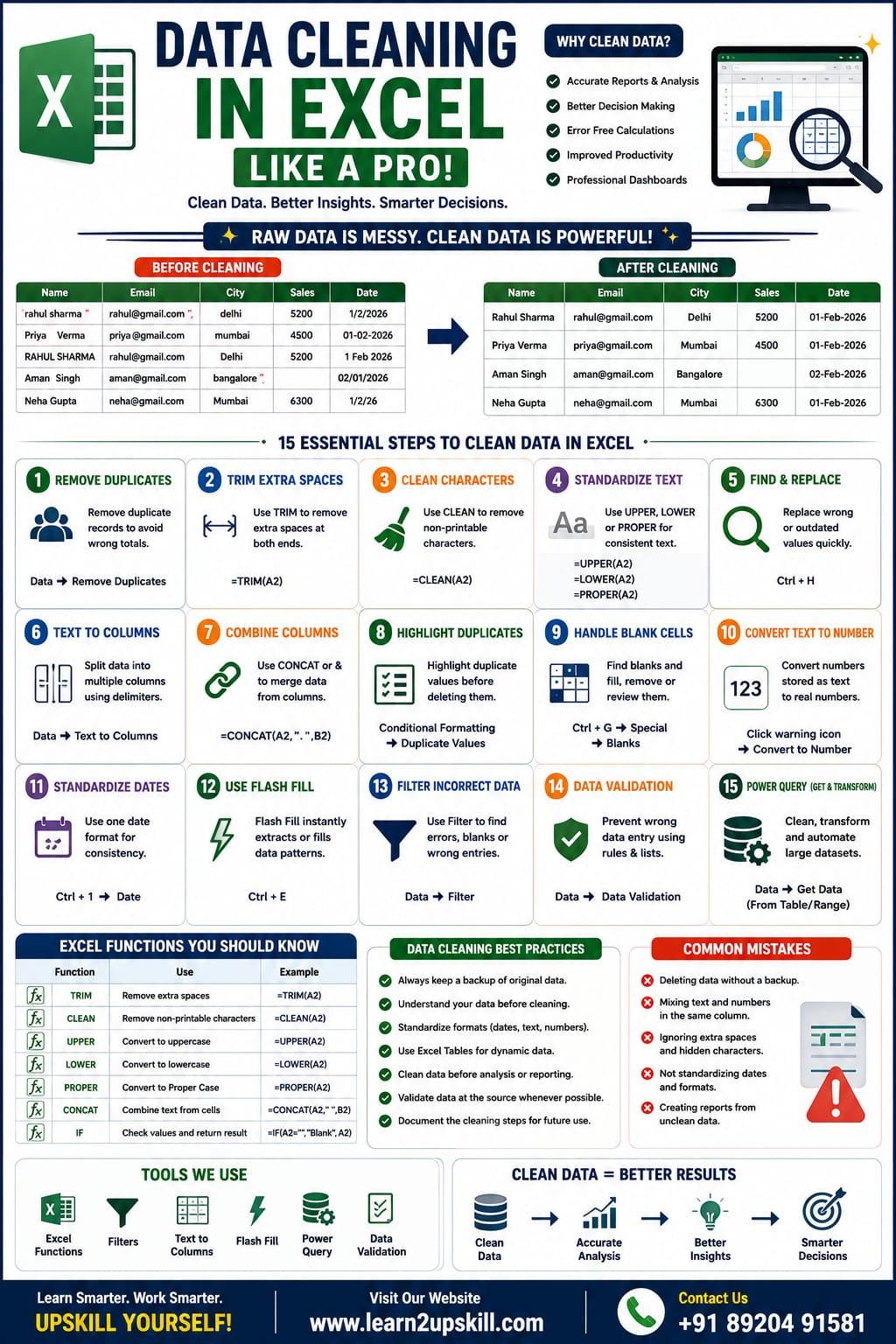
Data is one of the most valuable assets for any business, but raw data is often messy. Extra spaces, duplicate records, inconsistent formatting, blank cells, spelling mistakes, and incorrect dates can make reports inaccurate and difficult to analyze.
That’s why data cleaning is one of the most important Excel skills for students, data analysts, accountants, HR professionals, marketers, and business owners.
In this complete guide, you’ll learn how to clean Excel data like a professional using built-in Excel features, formulas, and best practices.
What is Data Cleaning?
Data cleaning is the process of identifying and correcting inaccurate, incomplete, duplicate, or poorly formatted data so it can be analyzed reliably.
Clean data helps you:
– Create accurate reports
– Improve decision-making
– Prevent formula errors
– Save time
– Build better dashboards
– Increase productivity
Why is Data Cleaning Important?
Imagine a customer list with:
– Duplicate names
– Extra spaces
– Missing phone numbers
– Different date formats
– Incorrect capitalization
Without cleaning this data, reports and analysis may produce misleading results.
Common Data Problems in Excel
The most common issues include:
– Duplicate records
– Extra spaces
– Blank cells
– Incorrect dates
– Numbers stored as text
– Mixed capitalization
– Misspelled entries
– Inconsistent formatting
– Hidden characters
– Missing values
Step 1: Remove Duplicate Records
Duplicate data can affect totals, reports, and Pivot Tables.
Example
Name| City
Rahul| Delhi
Rahul| Delhi
Priya| Mumbai
How to Remove Duplicates
- Select your data.
- Go to Data → Remove Duplicates.
- Select the columns to check.
- Click OK.
Excel removes duplicate entries while keeping the first occurrence.
Step 2: Remove Extra Spaces with TRIM
Imported data often contains unnecessary spaces.
Example
Before:
Rahul Sharma
Formula:
=TRIM(A2)
Result:
Rahul Sharma
TRIM removes leading, trailing, and extra spaces between words.
Step 3: Remove Non-Printable Characters with CLEAN
Sometimes copied data includes hidden characters.
Formula:
=CLEAN(A2)
This removes non-printable characters that may interfere with formulas and comparisons.
Step 4: Standardize Text with UPPER, LOWER, and PROPER
Convert to Uppercase
=UPPER(A2)
Result:
RAHUL SHARMA
Convert to Lowercase
=LOWER(A2)
Result:
rahul sharma
Proper Case
=PROPER(A2)
Result:
Rahul Sharma
Use these functions to maintain consistent formatting.
Step 5: Use Find & Replace
Quickly replace incorrect values.
Example
Replace:
Bombay
With:
Mumbai
Go to:
Home → Find & Select → Replace
This feature is ideal for correcting repeated spelling mistakes or outdated terms.
Step 6: Split Data with Text to Columns
Suppose a column contains:
Rahul Sharma
To split into First Name and Last Name:
- Select the column.
- Go to Data → Text to Columns.
- Choose Delimited.
- Select Space.
- Finish the wizard.
Step 7: Combine Columns with CONCAT
If first and last names are separate:
First Name| Last Name
Rahul| Sharma
Formula:
=CONCAT(A2,” “,B2)
Result:
Rahul Sharma
Step 8: Highlight Duplicate Values
Instead of deleting duplicates immediately, you can highlight them first.
Go to:
Home → Conditional Formatting → Highlight Cells Rules → Duplicate Values
This helps review duplicate entries before removing them.
Step 9: Handle Blank Cells
Blank cells can affect formulas and Pivot Tables.
To find blanks:
- Press Ctrl + G.
- Click Special.
- Choose Blanks.
Fill missing values where appropriate or remove incomplete records if they aren’t needed.
Step 10: Convert Numbers Stored as Text
A green triangle in a cell often indicates a number stored as text.
To fix it:
– Click the warning icon.
– Select Convert to Number.
This ensures calculations work correctly.
Step 11: Format Dates Consistently
Incorrect date formats can lead to sorting and filtering problems.
Example:
01/02/2026
2026-02-01
1 Feb 2026
Choose one standard date format for your workbook using Format Cells.
Step 12: Use Flash Fill
Flash Fill automatically recognizes patterns.
Example:
Email:
rahul.sharma@gmail.com
Extract:
Rahul Sharma
Type the first result, then press Ctrl + E to let Flash Fill complete the remaining rows.
Step 13: Filter Incorrect Data
Use filters to locate:
– Blank values
– Errors
– Duplicate categories
– Unexpected entries
Go to:
Data → Filter
Step 14: Validate Data Entry
Prevent incorrect entries by using Data Validation.
Examples:
– Restrict age between 18 and 60.
– Allow only specific departments.
– Create drop-down lists for consistent data entry.
Step 15: Clean Large Datasets with Power Query
Power Query is ideal for handling large datasets and repetitive cleaning tasks.
With Power Query, you can:
– Remove duplicates
– Split columns
– Merge tables
– Replace values
– Remove blank rows
– Transform data automatically
It is especially useful for recurring reports.
Professional Data Cleaning Checklist
Before analyzing data, check:
– No duplicate records
– No unnecessary spaces
– Consistent date formats
– Correct capitalization
– Numbers stored correctly
– No hidden characters
– Blank cells reviewed
– Accurate column headers
– Standardized categories
Best Practices
– Keep a backup of your original data.
– Clean data before creating Pivot Tables or charts.
– Use Excel Tables for easier management.
– Validate new data as it’s entered.
– Review changes before sharing reports.
Common Mistakes to Avoid
– Deleting data without a backup.
– Mixing text and numbers in the same column.
– Ignoring hidden spaces.
– Forgetting to convert text to numbers.
– Creating reports from unclean data.
Frequently Asked Questions (FAQs)
What is the best way to clean data in Excel?
Start by removing duplicates, trimming extra spaces, correcting formatting, handling blanks, standardizing dates, and using tools like Flash Fill or Power Query for larger datasets.
Which Excel function removes extra spaces?
The TRIM function removes leading, trailing, and repeated spaces within text.
Can Power Query clean data automatically?
Yes. Once you create a Power Query transformation, you can refresh it when new data is imported, making repetitive cleaning tasks much faster.
Why should I clean data before creating Pivot Tables?
Clean data reduces errors, prevents duplicate counts, and ensures your Pivot Tables and charts produce accurate, reliable results.
Final Thoughts
Data cleaning is the foundation of every successful Excel project. Whether you’re creating reports, dashboards, financial models, or business analyses, clean data ensures your results are accurate and trustworthy.
By mastering tools such as TRIM, CLEAN, Find & Replace, Remove Duplicates, Text to Columns, Flash Fill, Data Validation, and Power Query, you’ll work more efficiently and produce higher-quality reports.
At Learn2Upskill, we help students and professionals build practical Excel skills through real-world examples and hands-on tutorials.
Visit: www.learn2upskill.com
Contact Us: +91 89204 91581
Clean Data. Better Insights. Smarter Decisions.
You May Also Like
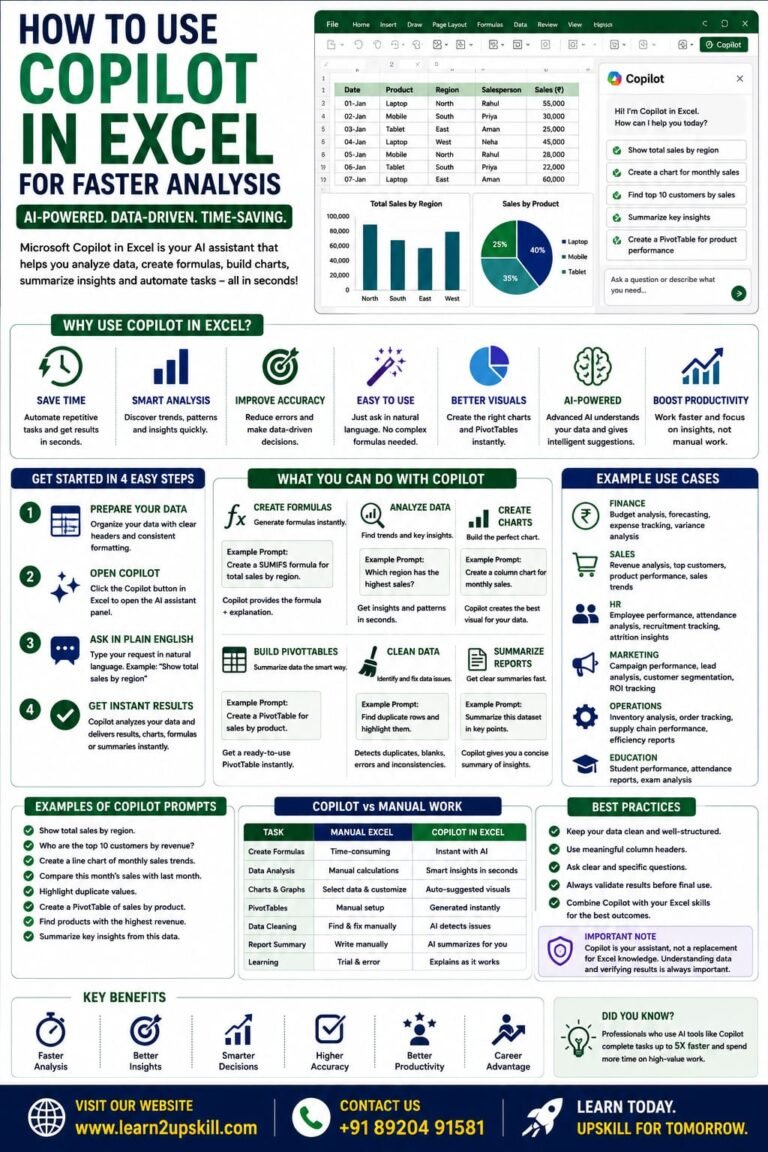
How to Use Copilot in Excel for Faster Analysis Learn how to use Microsoft Copilot in Excel to analyze data...
-
-
July 21, 2026
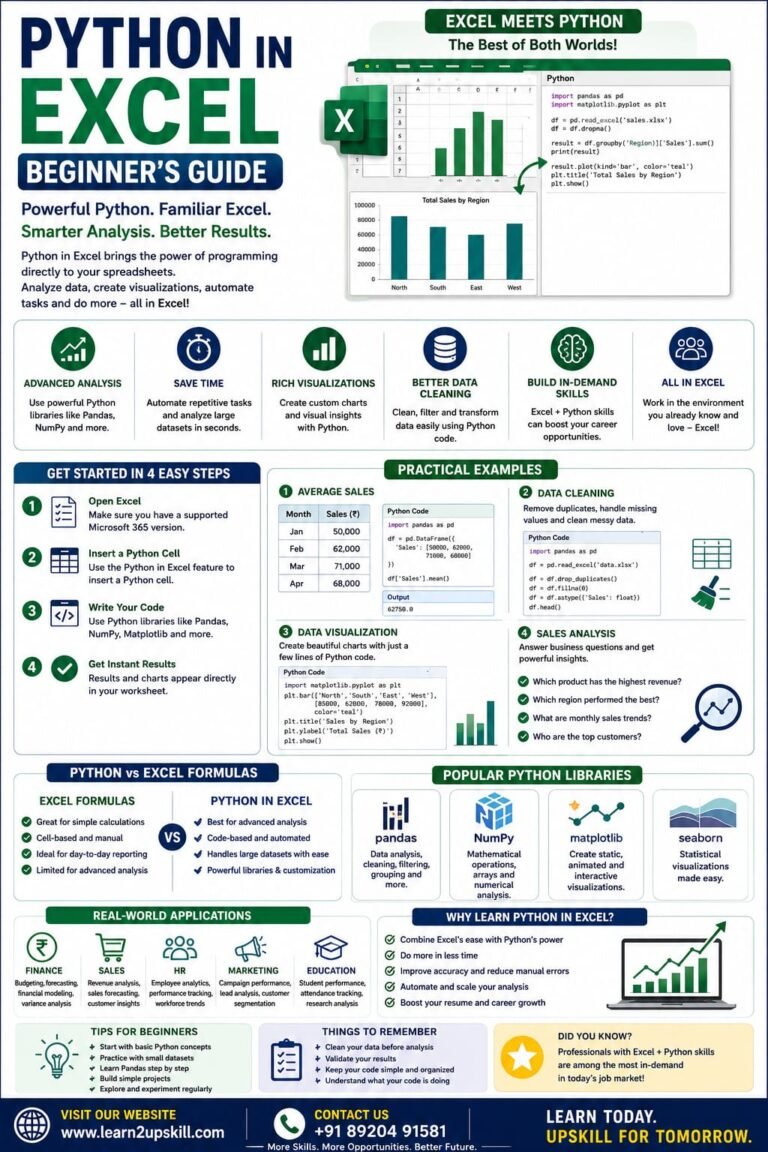
Python in Excel Learn how to use Python in Microsoft Excel with this beginner-friendly guide. Discover setup, syntax, examples, benefits,...
-
-
July 20, 2026
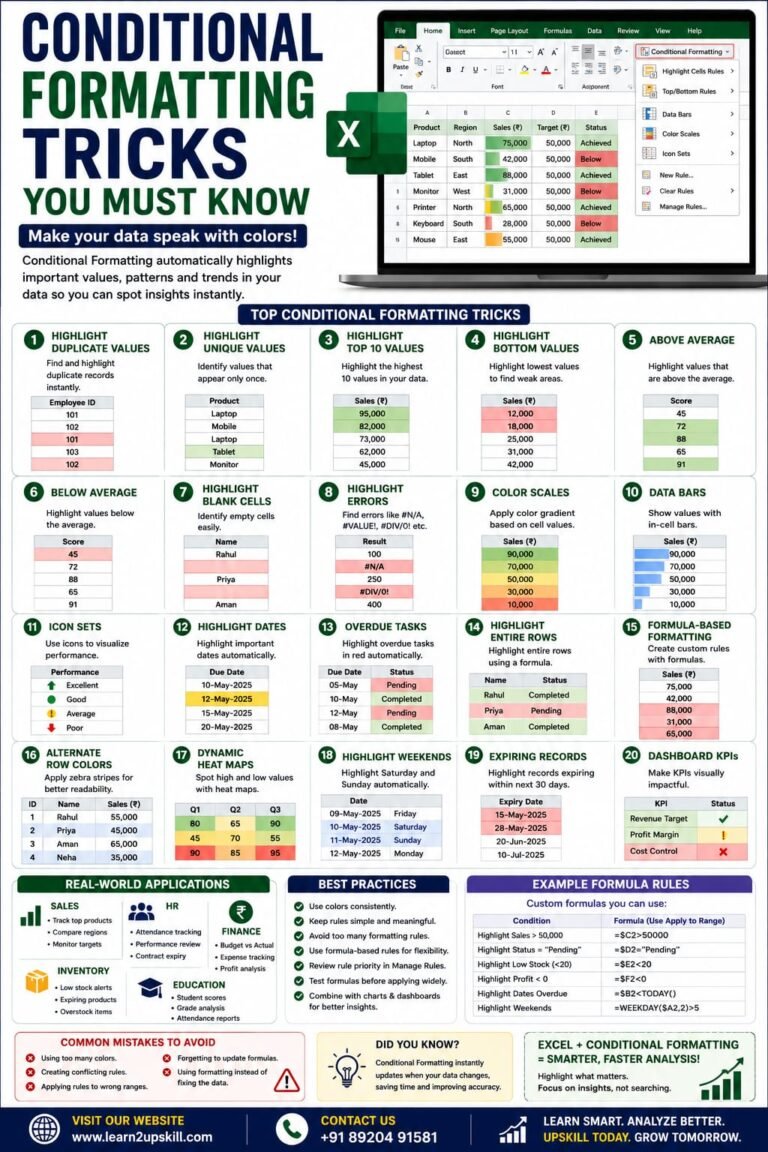
Conditional Formatting Tricks You Must Know) Learn the best Conditional Formatting tricks in Excel with practical examples. Highlight duplicates, overdue...
-
-
June 12, 2026