

50 Excel Keyboard Shortcuts to Save Time
50 Excel Keyboard Shortcuts to Save Time
Learn the 50 most useful Excel keyboard shortcuts that every student, professional, accountant, and data analyst should know to work faster and smarter in Microsoft Excel.
50 Excel Keyboard Shortcuts to Save Time
Microsoft Excel is one of the most powerful tools for managing data, creating reports, and analyzing information. While many users rely on the mouse, professionals know that keyboard shortcuts are the fastest way to work in Excel. Microsoft also recommends keyboard shortcuts as an efficient way to improve productivity and accessibility.
In this guide, you’ll learn 50 essential Excel keyboard shortcuts that can save you hours every week.
Why Learn Excel Keyboard Shortcuts?
Using keyboard shortcuts helps you:
– Work faster
– Reduce mouse clicks
– Improve productivity
– Analyze data efficiently
– Impress employers during Excel interviews
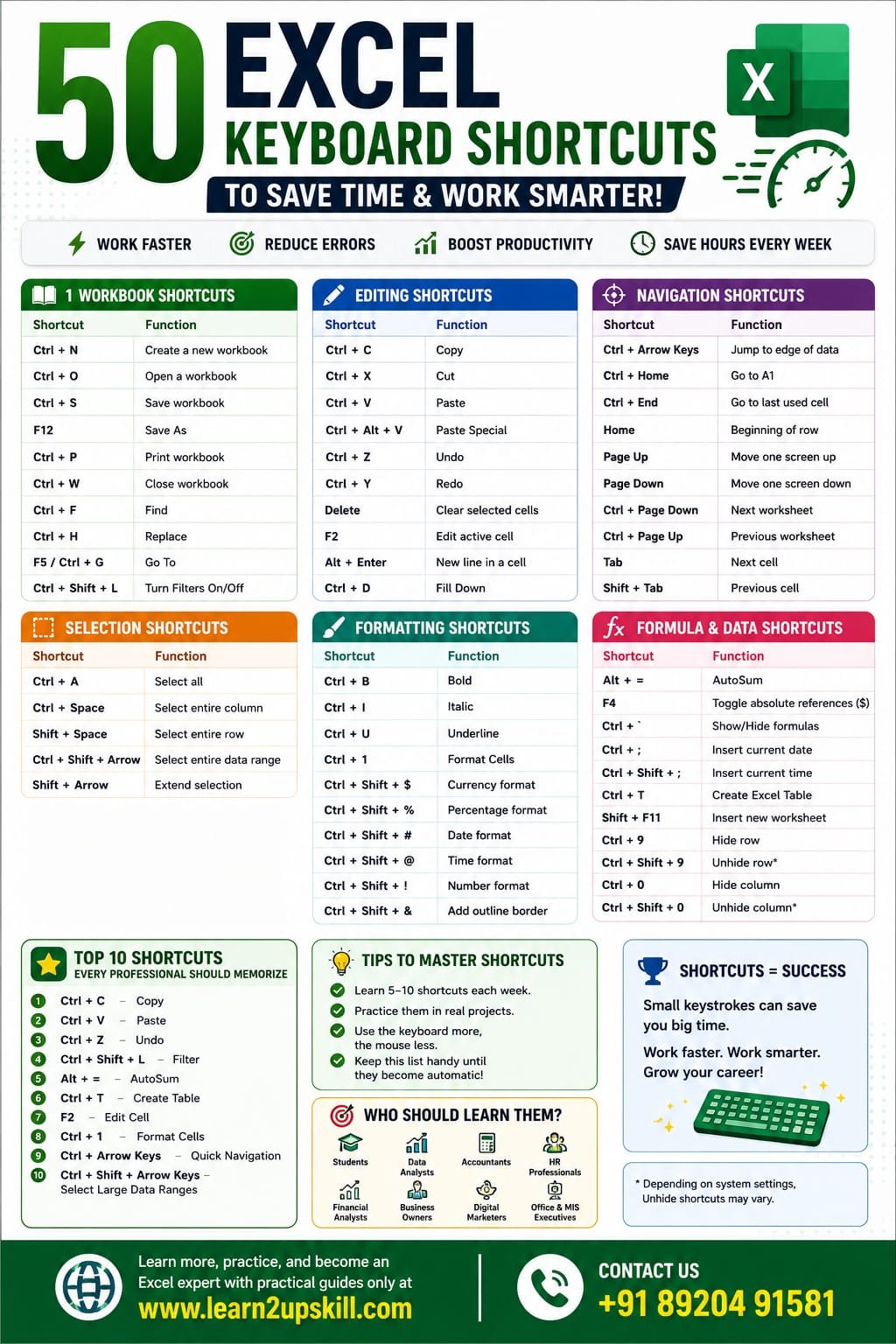
Workbook Shortcuts
Shortcut| Function
Ctrl + N| Create a new workbook
Ctrl + O| Open a workbook
Ctrl + S| Save workbook
F12| Save As
Ctrl + P| Print workbook
Ctrl + W| Close workbook
Ctrl + F| Find
Ctrl + H| Replace
F5 / Ctrl + G| Go To
Ctrl + Shift + L| Turn Filters On/Off
Editing Shortcuts
Shortcut| Function
Ctrl + C| Copy
Ctrl + X| Cut
Ctrl + V| Paste
Ctrl + Alt + V| Paste Special
Ctrl + Z| Undo
Ctrl + Y| Redo
Delete| Clear selected cells
F2| Edit active cell
Alt + Enter| New line inside a cell
Ctrl + D| Fill Down
Navigation Shortcuts
Shortcut| Function
Ctrl + Arrow Keys| Jump to edge of data
Ctrl + Home| Go to A1
Ctrl + End| Go to last used cell
Home| Beginning of row
Page Up| Move one screen up
Page Down| Move one screen down
Ctrl + Page Down| Next worksheet
Ctrl + Page Up| Previous worksheet
Tab| Next cell
Shift + Tab| Previous cell
Selection Shortcuts
Shortcut| Function
Ctrl + A| Select all
Ctrl + Space| Select entire column
Shift + Space| Select entire row
Ctrl + Shift + Arrow| Select entire data range
Shift + Arrow| Extend selection
Formatting Shortcuts
Shortcut| Function
Ctrl + B| Bold
Ctrl + I| Italic
Ctrl + U| Underline
Ctrl + 1| Format Cells
Ctrl + Shift + $| Currency format
Ctrl + Shift + %| Percentage format
Ctrl + Shift + #| Date format
Ctrl + Shift + @| Time format
Ctrl + Shift + !| Number format
Ctrl + Shift + &| Add outline border
Shortcut| Function
Alt + =| AutoSum
F4| Toggle absolute references ($)
Ctrl + `| Show/Hide formulas
Ctrl + ;| Insert current date
Ctrl + Shift + ;| Insert current time
Ctrl + T| Create Excel Table
Shift + F11| Insert new worksheet
Ctrl + 9| Hide row
Ctrl + 0| Hide column
Ctrl + Shift + 9| Unhide row*
*Depending on your Windows settings, Ctrl + Shift + 0 for unhide columns may need to be enabled separately.
Top 10 Shortcuts Every Professional Should Memorize
- Ctrl + C — Copy
- Ctrl + V — Paste
- Ctrl + Z — Undo
- Ctrl + Shift + L — Filter
- Alt + = — AutoSum
- Ctrl + T — Create Table
- F2 — Edit Cell
- Ctrl + 1 — Format Cells
- Ctrl + Arrow Keys — Quick Navigation
- Ctrl + Shift + Arrow Keys — Select Large Data Ranges
These are among the shortcuts Excel power users frequently recommend because they dramatically reduce repetitive mouse actions.
Tips to Learn Keyboard Shortcuts Faster
– Learn 5–10 shortcuts each week.
– Practice them in real Excel projects.
– Challenge yourself to use the keyboard instead of the mouse for common tasks.
– Keep a printable cheat sheet near your workspace until the shortcuts become automatic.
Who Should Learn These Shortcuts?
These shortcuts are useful for:
– Students
– Data Analysts
– Accountants
– HR Professionals
– Financial Analysts
– Digital Marketers
– Business Owners
– Office Executives
– MIS Executives
Frequently Asked Questions (FAQs)
Which Excel shortcut saves the most time?
Ctrl + Arrow Keys, Alt + =, Ctrl + Shift + L, and Ctrl + T are among the biggest time savers for everyday work.
Are these shortcuts available in Microsoft 365?
Most of these shortcuts work in Microsoft 365 and many also work in older desktop versions of Excel. Some shortcuts can differ slightly in Excel for the web or on macOS.
How long does it take to memorize Excel shortcuts?
With daily practice, most people can become comfortable with the most useful shortcuts within a few weeks.
Final Thoughts
Learning Excel keyboard shortcuts is one of the easiest ways to boost your productivity. Even mastering just a handful of shortcuts can save minutes every day, which adds up to hours over the course of a month.
Start with the shortcuts you use most often, practice them consistently, and gradually build your speed. Over time, you’ll spend less time clicking through menus and more time focusing on meaningful work.
For more Excel tutorials, career-focused learning guides, and practical skill-building resources, visit www.learn2upskill.com.
Contact Us: +91 89204 91581
You May Also Like
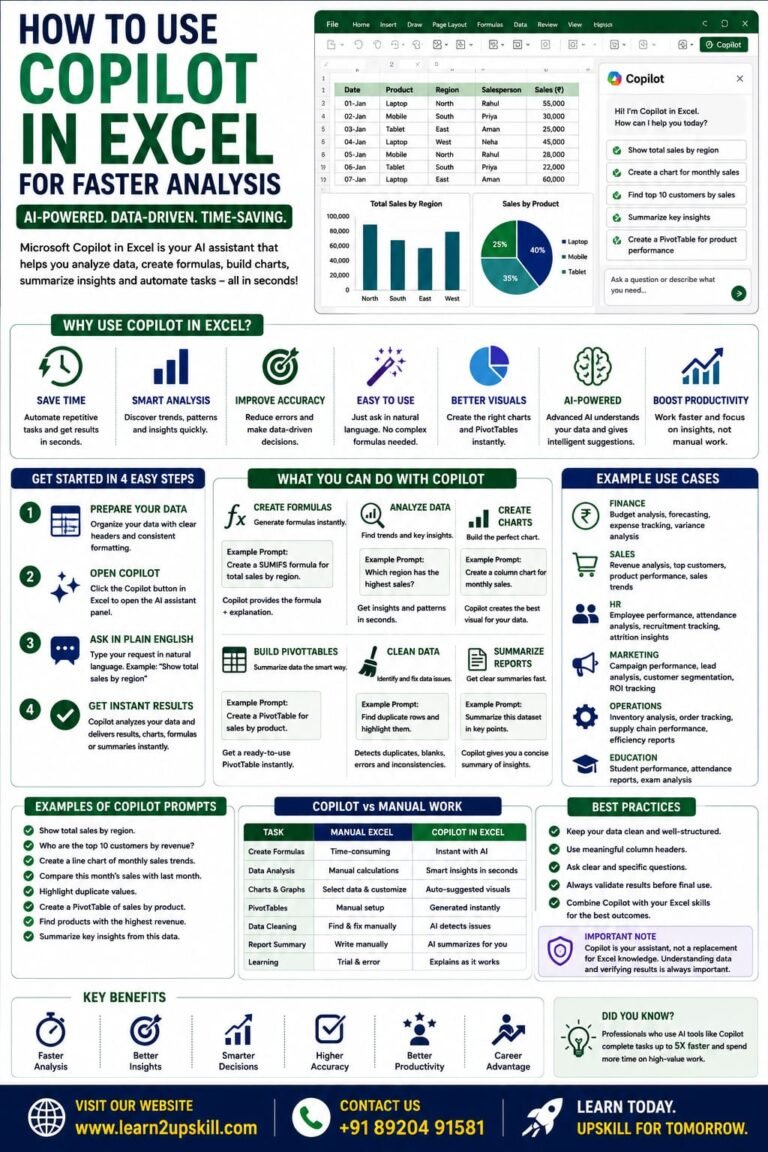
How to Use Copilot in Excel for Faster Analysis Learn how to use Microsoft Copilot in Excel to analyze data...
-
-
July 21, 2026
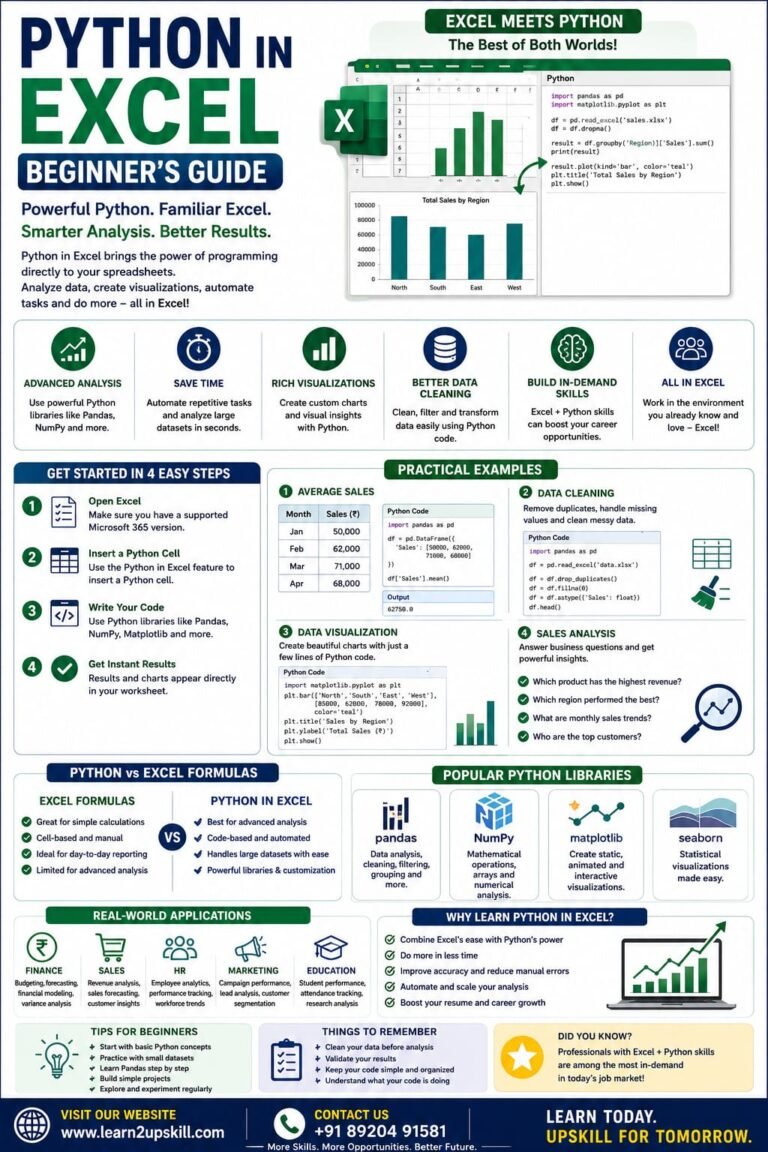
Python in Excel Learn how to use Python in Microsoft Excel with this beginner-friendly guide. Discover setup, syntax, examples, benefits,...
-
-
July 20, 2026
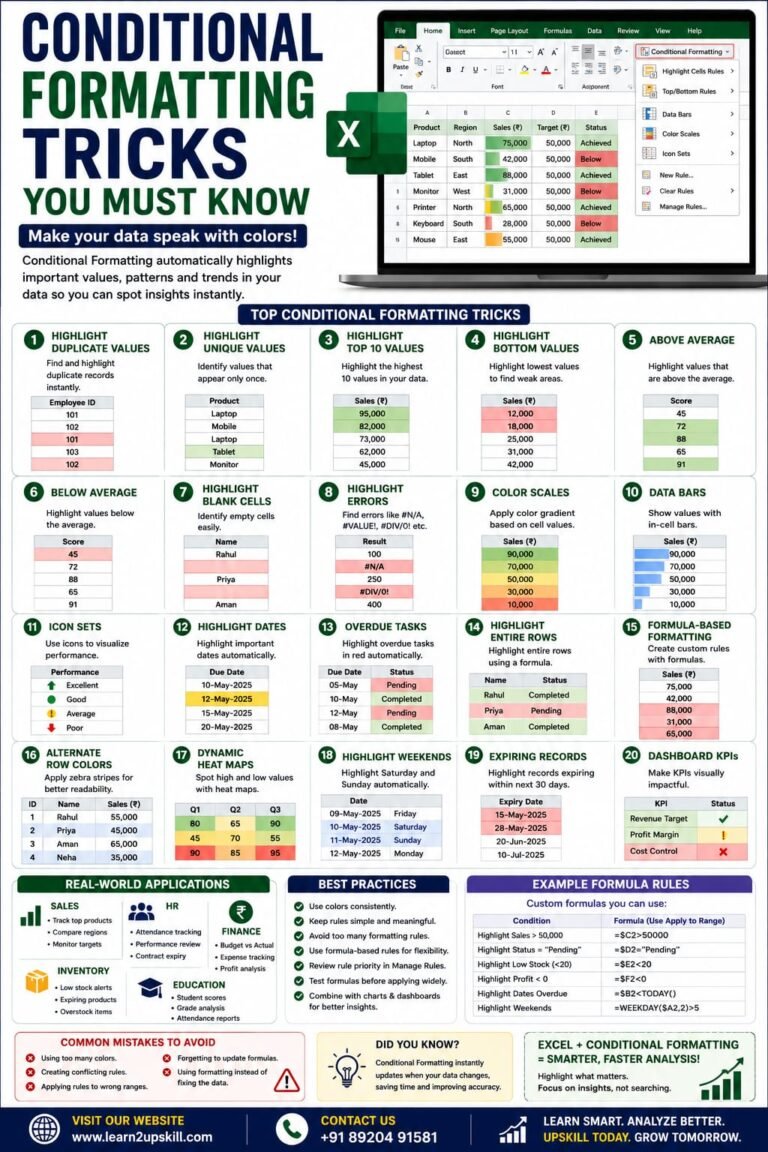
Conditional Formatting Tricks You Must Know) Learn the best Conditional Formatting tricks in Excel with practical examples. Highlight duplicates, overdue...
-
-
June 12, 2026