

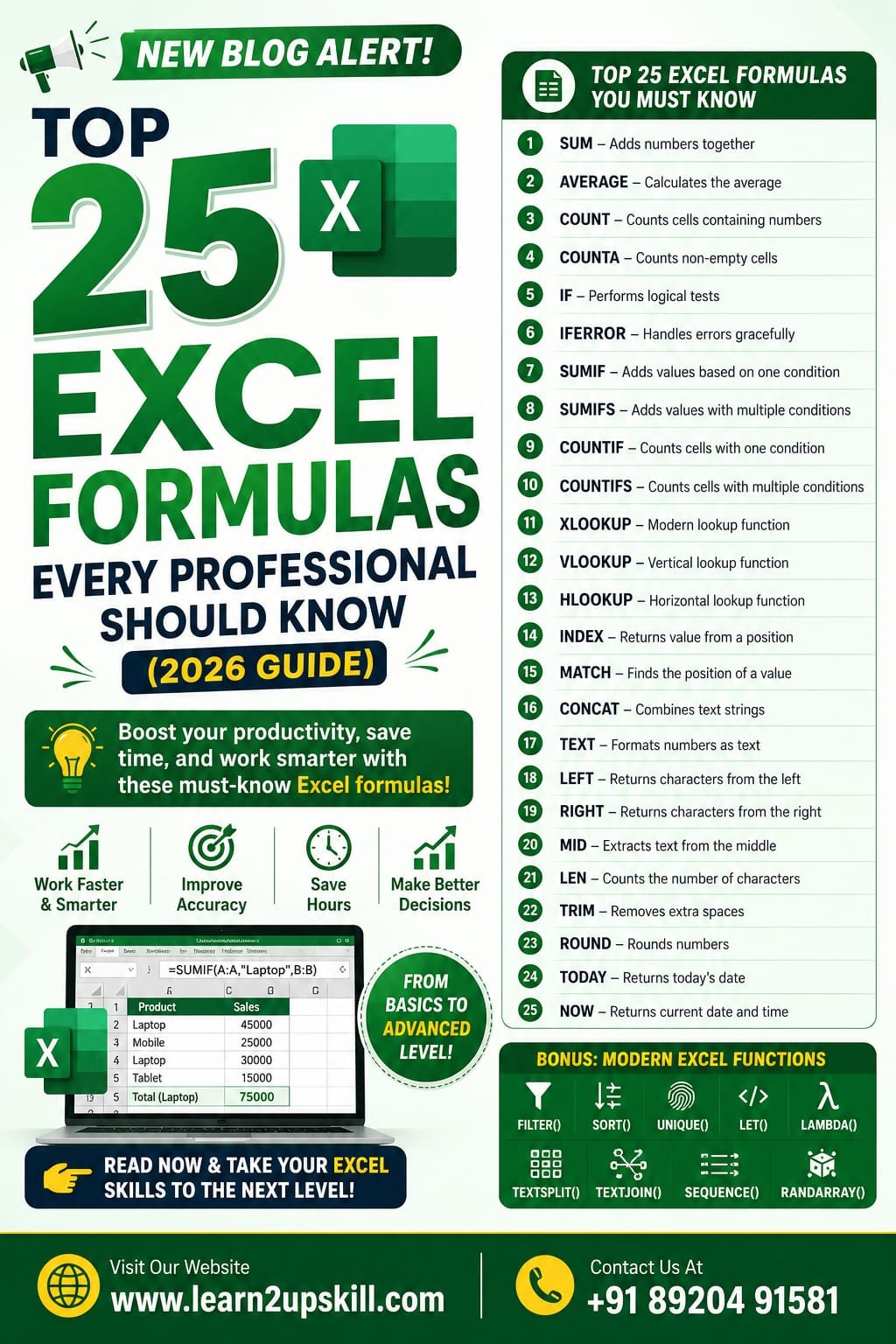
Top 25 Excel Formulas
Top 25 Excel Formulas
Introduction
Microsoft Excel remains one of the most valuable workplace skills across industries. Whether you’re a student, accountant, data analyst, HR professional, marketer, or business owner, knowing the right Excel formulas can save hours of manual work and improve your productivity.
In this comprehensive guide, you’ll learn the top 25 Excel formulas every professional should know, along with practical examples and real-world use cases.
- SUM
Purpose: Adds numbers together.
Syntax:
=SUM(A1:A10)
Example:
If cells A1 to A10 contain sales figures, this formula calculates the total sales.
Use Cases:
– Sales reports
– Expense tracking
– Budget management
- AVERAGE
Purpose: Calculates the average value.
Syntax:
=AVERAGE(B2:B20)
Example:
Find the average marks of students.
- COUNT
Purpose: Counts cells containing numbers.
Syntax:
=COUNT(A1:A100)
Useful for counting sales records, invoices, or employee IDs.
- COUNTA
Purpose: Counts all non-empty cells.
Syntax
=COUNTA(A1:A100)
Ideal for checking how many records have been entered.
- IF
Purpose: Performs logical tests.
Syntax
=IF(A2>=50,”Pass”,”Fail”)
Perfect for grading systems and decision-making.
- IFERROR
Purpose: Replaces errors with custom values.
Syntax
=IFERROR(A2/B2,”Error”)
Useful when dividing numbers or using lookup functions.
- SUMIF
Purpose: Adds values based on one condition.
Syntax
=SUMIF(A:A,”Laptop”,B:B)
Example:
Calculate total sales of laptops only.
- SUMIFS
Purpose: Adds values using multiple conditions.
Syntax
=SUMIFS(C:C,A:A,”North”,B:B,”Laptop”)
Excellent for sales reporting.
- COUNTIF
Counts records matching one condition.
=COUNTIF(A:A,”Completed”)
- COUNTIFS
Counts records matching multiple conditions.
=COUNTIFS(A:A,”North”,B:B,”Completed”)
- XLOOKUP
The modern replacement for VLOOKUP.
=XLOOKUP(A2,D:D,E:E)
Advantages:
– Searches left and right
– More accurate
– Easier to use
- VLOOKUP
Still widely used.
=VLOOKUP(A2,D:F,2,FALSE)
Useful for employee databases and product lists.
- HLOOKUP
Searches horizontally.
=HLOOKUP(“Jan”,A1:M5,2,FALSE)
- INDEX
Returns values from a specific position.
=INDEX(A1:C10,3,2)
- MATCH
Finds the position of a value.
=MATCH(“Laptop”,A:A,0)
Often combined with INDEX.
- CONCAT
Combines text.
=CONCAT(A2,” “,B2)
Example:
Join first and last names.
- TEXT
Formats numbers as text.
=TEXT(A2,”dd-mm-yyyy”)
Useful for dates and reports.
- LEFT
Returns characters from the left.
=LEFT(A2,5)
- RIGHT
Returns characters from the right.
=RIGHT(A2,4)
- MID
Extracts text from the middle.
=MID(A2,4,6)
Useful for invoice numbers and IDs.
- LEN
Counts the number of characters.
=LEN(A2)
Great for data validation.
- TRIM
Removes extra spaces.
=TRIM(A2)
Perfect for cleaning imported data.
- ROUND
Rounds numbers.
=ROUND(A2,2)
Ideal for financial reports.
- TODAY
Returns today’s date.
=TODAY()
Useful in attendance sheets and project tracking.
- NOW
Returns the current date and time.
=NOW()
Useful for timestamps and live reports.
Bonus Excel Formulas
If you’re aiming for advanced Excel skills, also learn:
– FILTER()
– SORT()
– UNIQUE()
– LET()
– LAMBDA()
– TEXTSPLIT()
– TEXTJOIN()
– SEQUENCE()
– RANDARRAY()
These modern functions make Excel faster and more powerful.
Tips to Master Excel Faster
– Practice formulas daily.
– Learn keyboard shortcuts.
– Build real-world dashboards.
– Analyze sample datasets.
– Solve business problems using Excel.
Frequently Asked Questions (FAQs)
Which Excel formula is most useful?
The IF, XLOOKUP, SUMIFS, INDEX, MATCH, and Pivot Tables are among the most commonly used tools in professional environments.
Is XLOOKUP better than VLOOKUP?
Yes. XLOOKUP is faster, more flexible, and can search in any direction, making it the preferred choice in newer versions of Excel.
Can beginners learn these formulas?
Absolutely. Start with SUM, AVERAGE, IF, COUNT, and VLOOKUP before moving on to advanced formulas like XLOOKUP, INDEX, and MATCH.
Which Excel formulas are important for data analysts?
Data analysts frequently use XLOOKUP, SUMIFS, COUNTIFS, INDEX, MATCH, FILTER, SORT, UNIQUE, IFERROR, and TEXT functions for cleaning, analyzing, and reporting data.
Final Thoughts
Mastering Excel formulas is one of the smartest investments you can make in your career. These 25 formulas cover everything from basic calculations to advanced data analysis and reporting. Whether you’re preparing for a job interview, managing business data, or improving your productivity, consistent practice with these formulas will help you work faster and make better decisions.
Start by learning a few formulas each week, apply them to real datasets, and gradually build your confidence. As you become more comfortable, you’ll be ready to explore advanced Excel features like dashboards, Pivot Tables, Power Query, and AI-powered tools, taking your spreadsheet skills to the next level.
Learn. Practice. Upskill.
You May Also Like
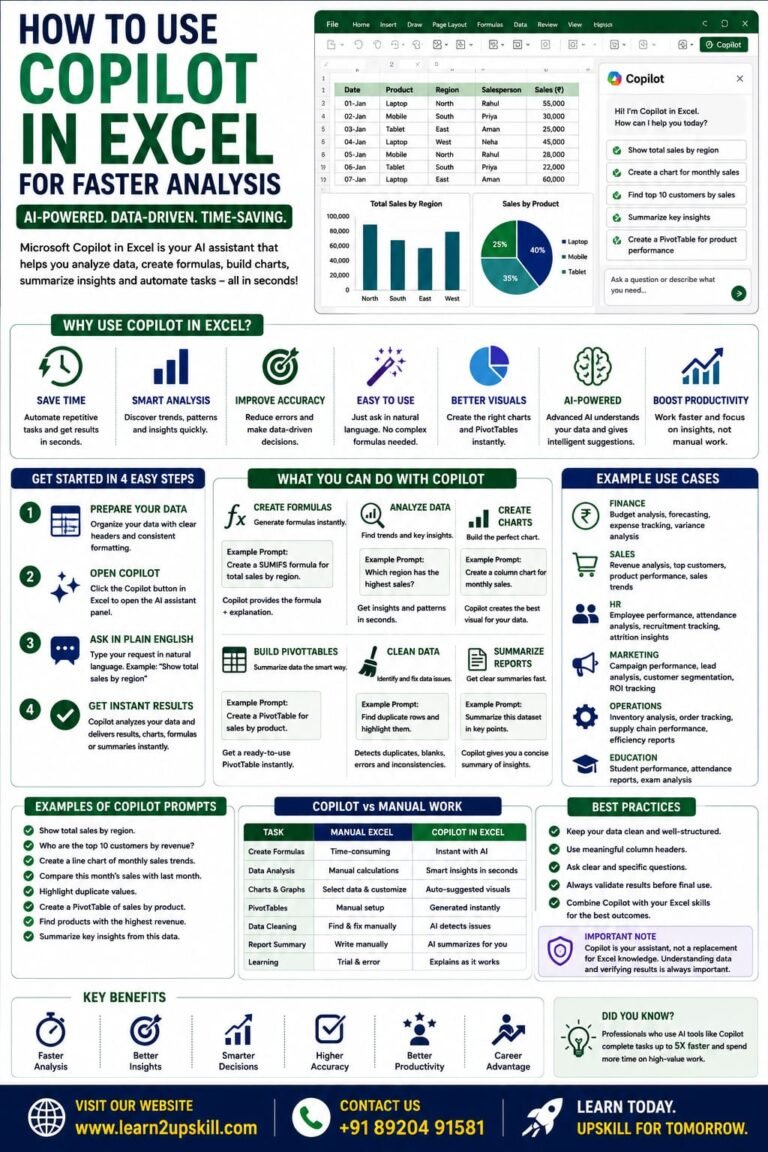
How to Use Copilot in Excel for Faster Analysis Learn how to use Microsoft Copilot in Excel to analyze data...
-
-
July 21, 2026
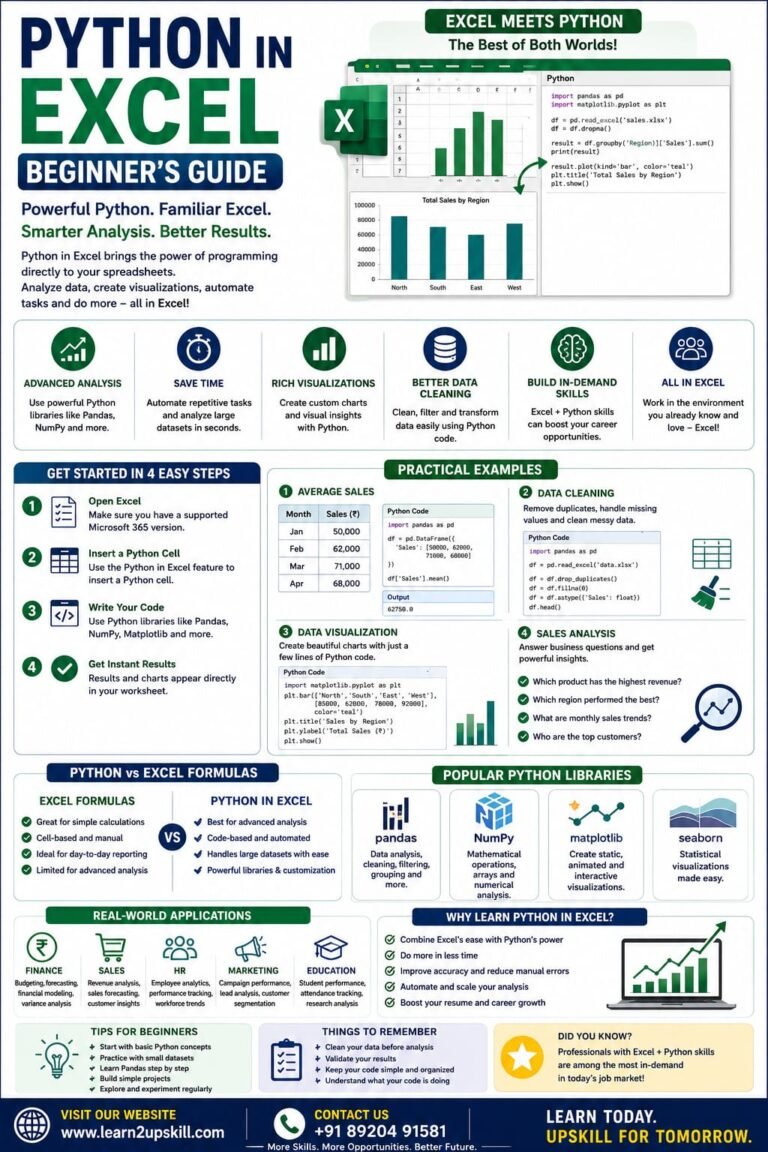
Python in Excel Learn how to use Python in Microsoft Excel with this beginner-friendly guide. Discover setup, syntax, examples, benefits,...
-
-
July 20, 2026
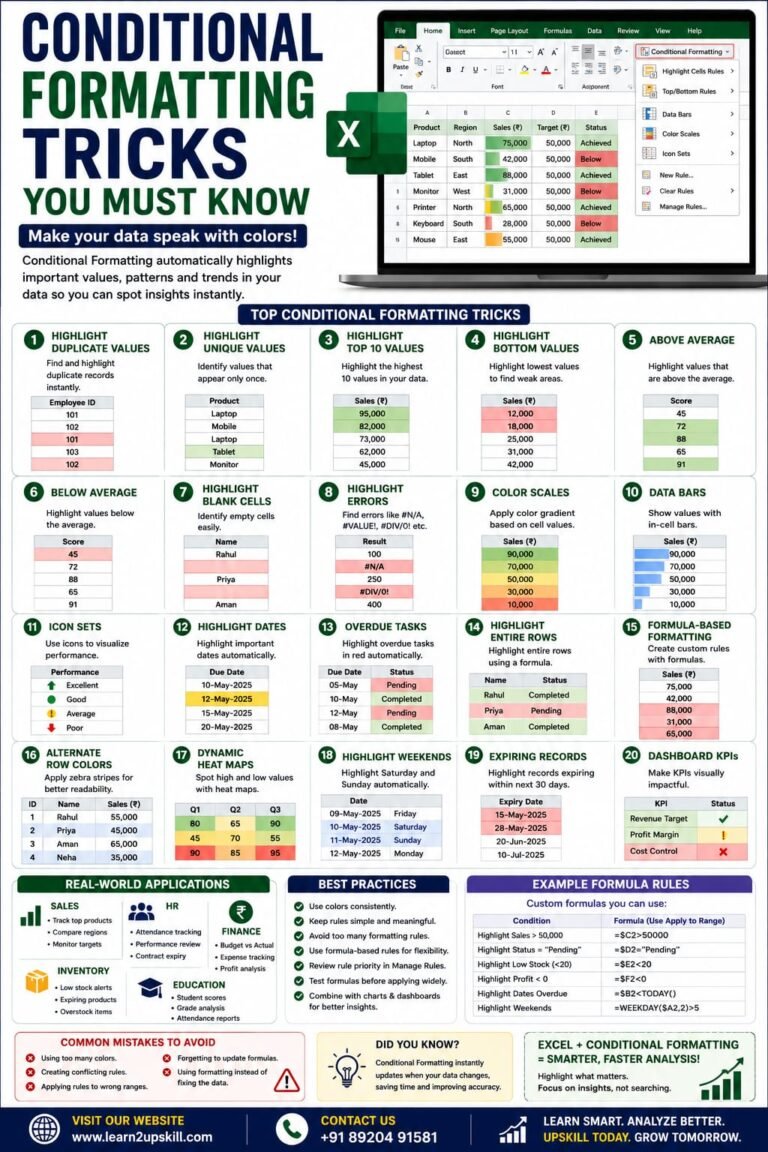
Conditional Formatting Tricks You Must Know) Learn the best Conditional Formatting tricks in Excel with practical examples. Highlight duplicates, overdue...
-
-
June 12, 2026