

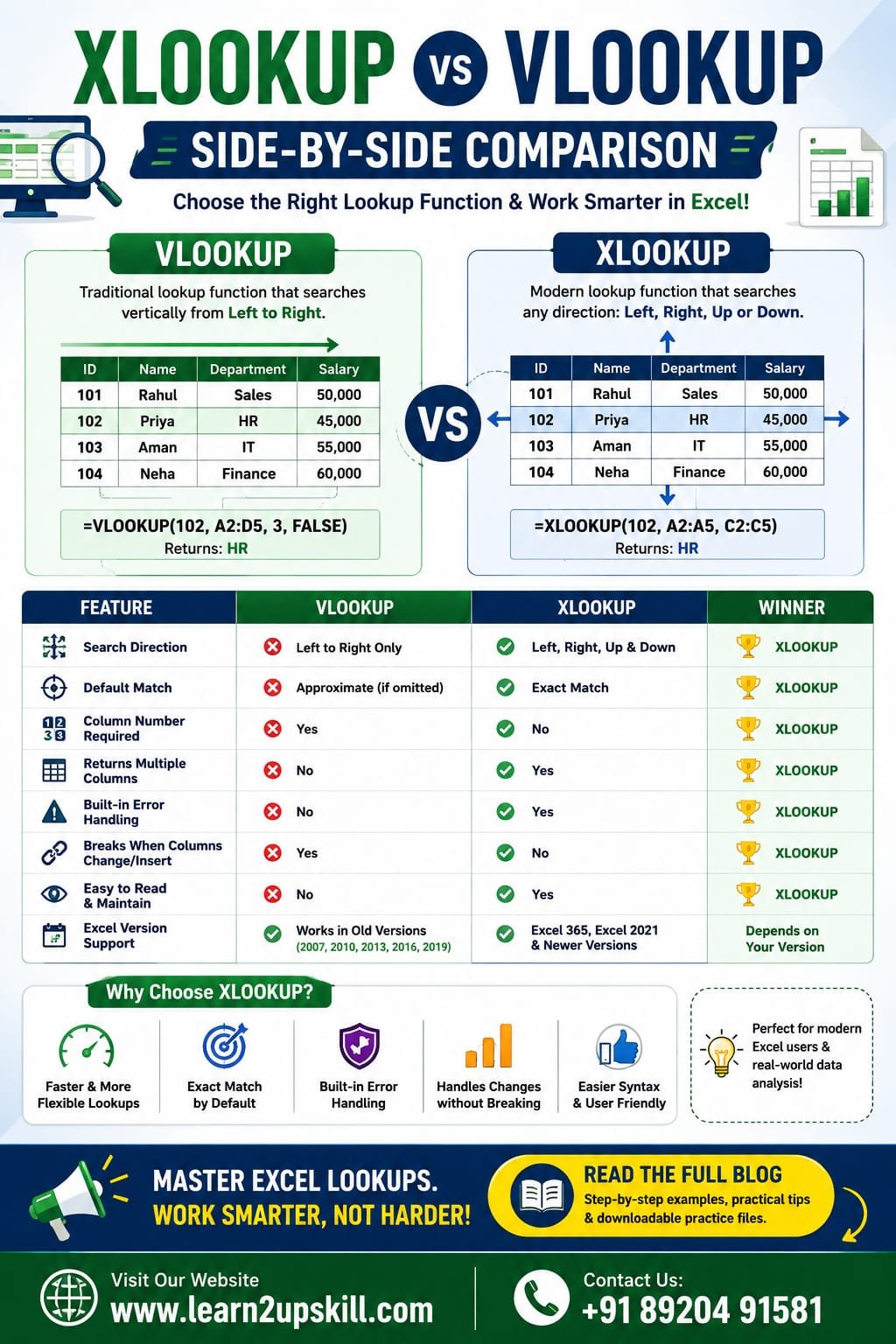
XLOOKUP vs VLOOKUP: Which One Should You Use?
XLOOKUP vs VLOOKUP: Which One Should You Use?
Learn the difference between XLOOKUP and VLOOKUP in Excel with practical examples, syntax, advantages, disadvantages, and expert tips. Find out which lookup function is best for your work.
XLOOKUP vs VLOOKUP: Which One Should You Use?
If you’ve worked with Microsoft Excel, you’ve probably used VLOOKUP to retrieve data from tables. For years, it has been one of Excel’s most popular functions.
However, Microsoft introduced XLOOKUP, a more powerful and flexible lookup function that solves many of VLOOKUP’s limitations. Today, many Excel professionals prefer XLOOKUP because it’s easier to use, more reliable, and works with modern Excel versions.
In this guide, you’ll learn:
– What is VLOOKUP?
– What is XLOOKUP?
– Key differences between XLOOKUP and VLOOKUP
– Practical examples
– Pros and cons
– Which one should you learn first?
Let’s get started.
What is VLOOKUP?
VLOOKUP stands for Vertical Lookup.
It searches for a value in the first column of a table and returns information from another column in the same row.
Syntax
=VLOOKUP(lookup_value, table_array, col_index_num, FALSE)
Example
Suppose you have this table:
Employee ID| Name| Department
E101| Rahul| Sales
E102| Priya| HR
E103| Aman| IT
Formula:
=VLOOKUP(“E102”,A2:C4,2,FALSE)
Result:
Priya
What is XLOOKUP?
XLOOKUP is Microsoft’s modern lookup function that replaces both VLOOKUP and HLOOKUP in many scenarios.
Unlike VLOOKUP, it allows you to search in any direction and doesn’t rely on column numbers, making formulas easier to maintain.
Syntax
=XLOOKUP(lookup_value, lookup_array, return_array)
Example
=XLOOKUP(“E102”,A2:A4,B2:B4)
Result:
Priya
XLOOKUP vs VLOOKUP: Side-by-Side Comparison
Feature| VLOOKUP| XLOOKUP
Search Direction| Left to Right Only| Left, Right, Up & Down
Default Match| Approximate (if omitted)| Exact Match
Column Number Required| Yes| No
Returns Multiple Columns| No| Yes
Built-in Error Handling| No| Yes
Breaks When Columns Change| Yes| No
Easier to Read| No| Yes
Excel Version| Older Versions| Excel 365, Excel 2021 & newer
- Search Direction
VLOOKUP
Can only search from left to right.
Example:
Employee ID → Name
Works perfectly.
But if Name comes before Employee ID, VLOOKUP cannot retrieve it directly.
XLOOKUP
Can search in any direction.
It works even if the return column is on the left.
This is one of the biggest reasons professionals prefer XLOOKUP.
- Exact Match by Default
One of the most common VLOOKUP mistakes is forgetting to use FALSE.
Example:
=VLOOKUP(A2,D:G,3)
This may return an incorrect approximate match.
With XLOOKUP:
=XLOOKUP(A2,D:D,F:F)
Exact match is the default, reducing the chance of accidental errors.
- No More Counting Columns
In VLOOKUP:
=VLOOKUP(A2,D:H,4,FALSE)
The number 4 means “return the fourth column.”
If someone inserts a new column, the formula can return incorrect data.
With XLOOKUP:
=XLOOKUP(A2,D:D,G:G)
You directly specify the return column, so inserting or deleting columns won’t break the formula.
- Built-in Error Handling
VLOOKUP usually requires:
=IFERROR(VLOOKUP(A2,D:H,4,FALSE),”Not Found”)
With XLOOKUP:
=XLOOKUP(A2,D:D,G:G,”Not Found”)
The error message is built into the function, making formulas cleaner.
- Return Multiple Columns
Suppose you want:
– Name
– Department
– Salary
VLOOKUP needs separate formulas.
XLOOKUP can return multiple adjacent columns in one formula in supported versions of Excel.
Advantages of VLOOKUP
– Easy for beginners
– Works in older Excel versions
– Widely used in legacy workbooks
– Common in interview questions
Advantages of XLOOKUP
– Searches left and right
– Exact match by default
– Built-in error handling
– Easier syntax
– Doesn’t break when columns change
– More flexible and easier to maintain
When Should You Use VLOOKUP?
Use VLOOKUP if:
– You’re working with Excel 2016 or older.
– Your organization uses legacy spreadsheets.
– You need compatibility with older workbook
When Should You Use XLOOKUP?
Use XLOOKUP if:
– You’re using Microsoft 365 or Excel 2021 and later.
– You’re creating new spreadsheets.
– You want cleaner, more reliable formulas.
– You need flexible lookups in any direction.
For most new Excel projects, XLOOKUP is generally the recommended choice because it addresses many of VLOOKUP’s long-standing limitations
Real-World Example
Imagine an HR database with:
– Employee ID
– Name
– Department
– Salary
Need: Find an employee’s salary using Employee ID.
VLOOKUP
=VLOOKUP(A2,D:G,4,FALSE)
XLOOKUP
=XLOOKUP(A2,D:D,G:G)
The XLOOKUP version is shorter, easier to understand, and remains correct even if columns are rearranged.
Common Mistakes
VLOOKUP Mistakes
– Forgetting FALSE
– Wrong column number
– Inserting new columns
– Lookup column not on the left
XLOOKUP Mistakes
– Using it in unsupported Excel versions
– Choosing the wrong lookup or return range
Frequently Asked Questions (FAQs)
Is XLOOKUP better than VLOOKUP?
Yes. XLOOKUP is generally more flexible, supports searches in any direction, defaults to exact matches, and is easier to maintain.
Does XLOOKUP replace VLOOKUP?
For modern versions of Excel, yes. However, VLOOKUP is still useful when you need compatibility with older Excel versions.
Which one should beginners learn first?
Learn both. Start with VLOOKUP to understand traditional lookup concepts, then move to XLOOKUP because it’s the preferred function for modern Excel users.
Is XLOOKUP available in all Excel versions?
No. XLOOKUP is available in Microsoft 365 and newer supported Excel releases. It isn’t available in Excel 2016 or Excel 2019.
Final Thoughts
Both VLOOKUP and XLOOKUP are valuable Excel functions, but they serve different needs.
If you’re maintaining older spreadsheets or working in an environment with legacy Excel versions, VLOOKUP is still important. However, if you’re learning Excel today or building new workbooks, XLOOKUP should be your first choice because it’s more powerful, easier to read, and less prone to errors.
At Learn2Upskill, we recommend mastering both functions so you’re prepared for interviews, real-world business tasks, and modern data analysis projects.
Ready to become an Excel expert? Explore more Excel tutorials, practical guides, and career-focused learning resources at www.learn2upskill.com.
Contact Us: +91 89204 91581
You May Also Like
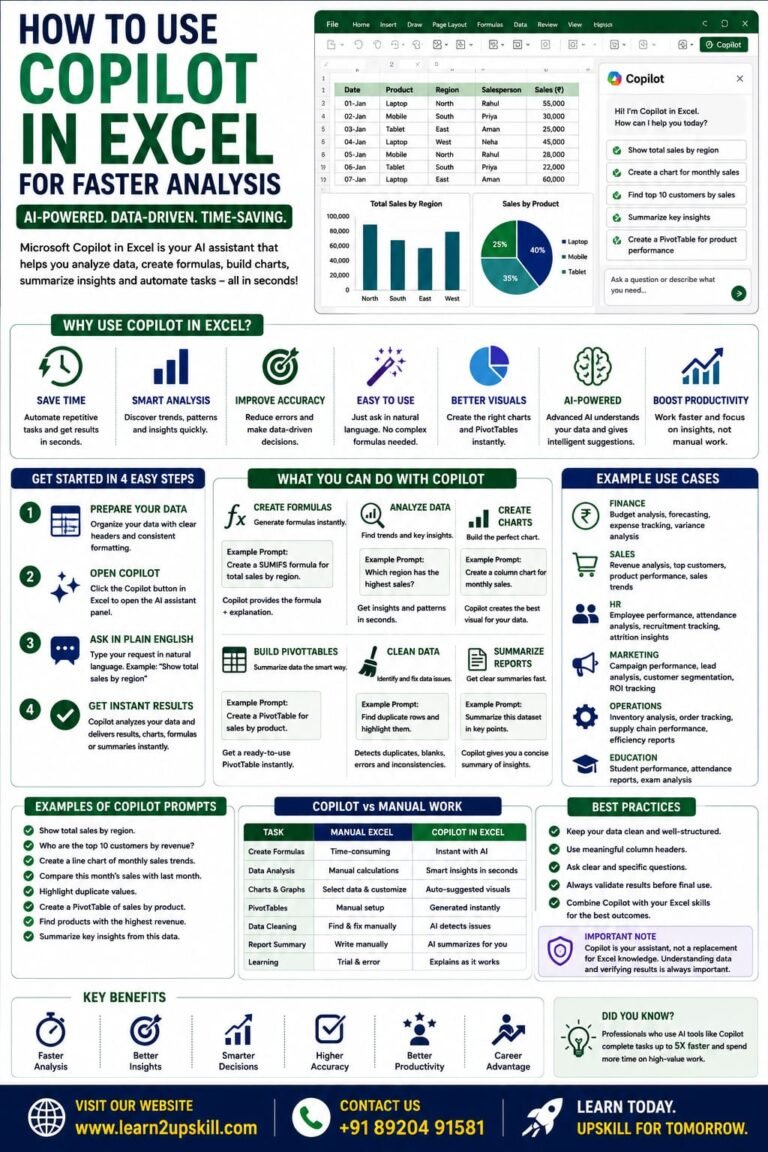
How to Use Copilot in Excel for Faster Analysis Learn how to use Microsoft Copilot in Excel to analyze data...
-
-
July 21, 2026
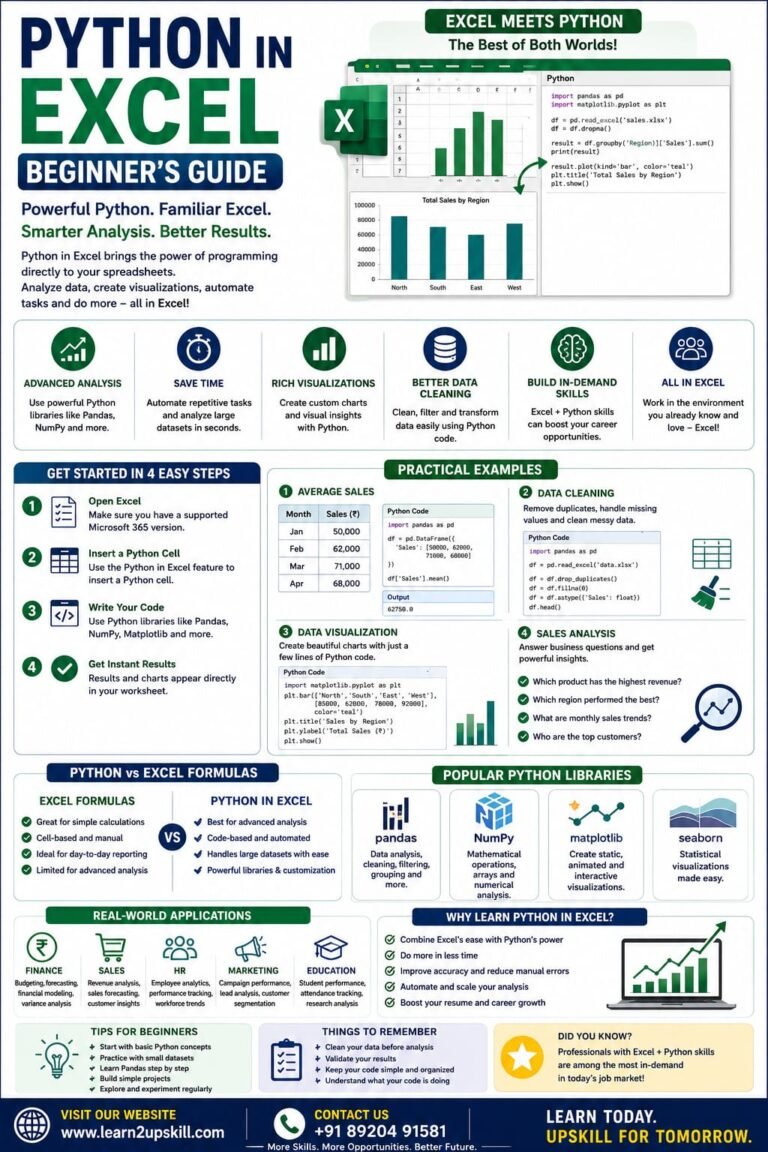
Python in Excel Learn how to use Python in Microsoft Excel with this beginner-friendly guide. Discover setup, syntax, examples, benefits,...
-
-
July 20, 2026
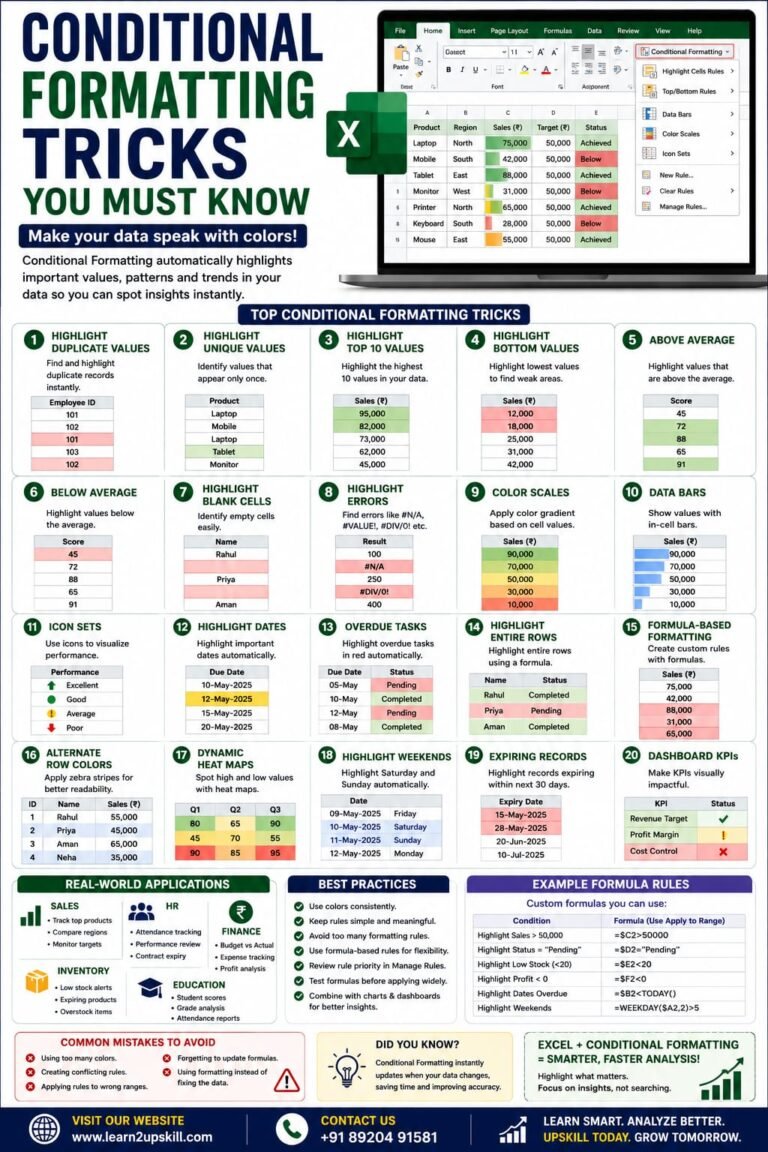
Conditional Formatting Tricks You Must Know) Learn the best Conditional Formatting tricks in Excel with practical examples. Highlight duplicates, overdue...
-
-
June 12, 2026