

Excel vs Google Sheets: Which Is Better?
Excel vs Google Sheets: Which Is Better?
Compare Microsoft Excel and Google Sheets in terms of features, performance, collaboration, AI tools, pricing, formulas, dashboards, and business use cases. Find out which spreadsheet tool is best for your needs.
Focus Keyword: Excel vs Google Sheets
Spreadsheets are an essential part of modern work. Whether you’re managing budgets, analyzing sales, tracking inventory, creating reports, or building dashboards, chances are you’ll use either Microsoft Excel or Google Sheets.
Both are powerful spreadsheet applications, but they are designed with different strengths. Excel is known for its advanced analytics, powerful formulas, and enterprise-level capabilities, while Google Sheets is popular for real-time collaboration and cloud-based accessibility.
So, which one should you choose?
In this comprehensive guide, we’ll compare Excel and Google Sheets across features, performance, collaboration, AI capabilities, pricing, and real-world use cases to help you decide.
—
What Is Microsoft Excel?
Microsoft Excel is a spreadsheet application included with Microsoft 365 and available as a desktop application, web app, and mobile app.
Excel is widely used for:
– Financial modeling
– Data analysis
– Dashboards
– PivotTables
– Advanced formulas
– Business reporting
– Large datasets
– Automation with VBA and Office Scripts
It is the preferred choice for many finance, accounting, operations, and analytics professionals.
—
What Is Google Sheets?
Google Sheets is Google’s cloud-based spreadsheet application, available through Google Workspace and free Google accounts.
Google Sheets focuses on:
– Real-time collaboration
– Cloud storage
– Easy sharing
– Team productivity
– Lightweight data analysis
– Integration with Google Workspace apps
It is especially popular among teams, educators, startups, and remote workers.
—
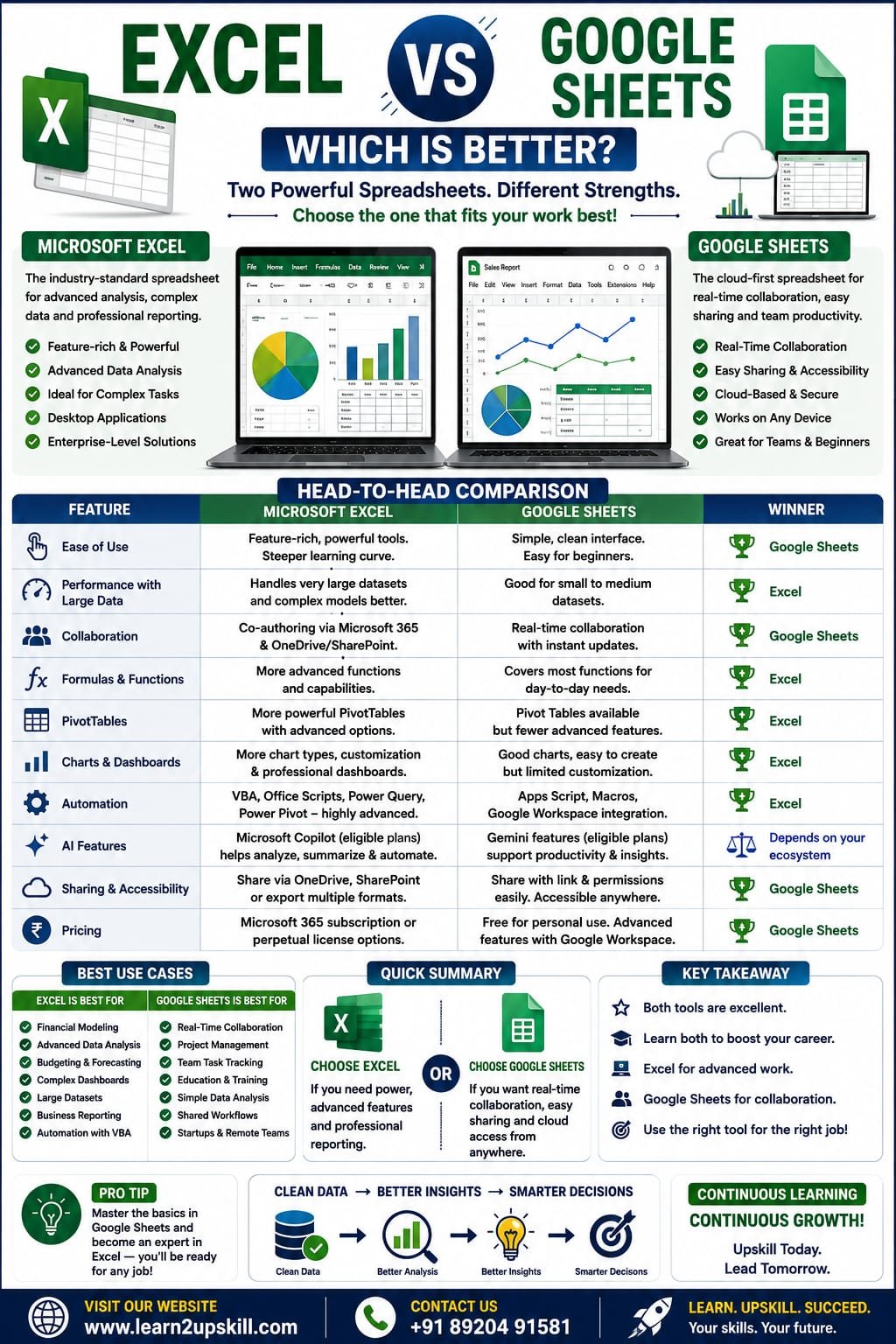
Excel vs Google Sheets: Quick Comparison
Feature| Microsoft Excel| Google Sheets
Best For| Advanced analysis| Team collaboration
Platform| Desktop, Web, Mobile| Web, Mobile
Offline Support| Excellent| Available with setup
Large Datasets| Excellent| Good for smaller to medium datasets
Collaboration| Very good| Excellent
PivotTables| Advanced| Good
Charts| Extensive options| Good selection
Dashboards| Advanced| Basic to intermediate
Automation| VBA, Office Scripts| Apps Script
AI Features| Microsoft Copilot (eligible plans)| Gemini features (eligible plans)
Cost| Microsoft 365 subscription or perpetual license options| Free version available; advanced features via Google Workspace
—
- Ease of Use
Excel
– Feature-rich interface
– Powerful tools for advanced users
– Steeper learning curve for beginners
Google Sheets
– Simple, clean interface
– Easy for beginners
– Quick to start without installing software
Winner: Google Sheets for beginners.
—
- Performance with Large Data
Excel
Excel handles large datasets, complex formulas, and advanced models more efficiently on capable hardware.
Google Sheets
Works well for many everyday tasks but may become slower with very large datasets or highly complex workbooks.
Winner: Excel.
—
- Collaboration
Excel
Supports co-authoring through Microsoft 365 and OneDrive/SharePoint.
Google Sheets
Built for real-time collaboration with instant updates, comments, and sharing.
Winner: Google Sheets.
—
- Formulas and Functions
Both applications support many common formulas such as:
– SUM
– IF
– XLOOKUP (Excel)
– FILTER
– INDEX
– MATCH
– COUNTIF
– VLOOKUP
Excel generally offers a broader set of advanced features and functions, while Google Sheets includes functions tailored to its ecosystem.
Winner: Excel for advanced functionality.
—
- PivotTables
Excel provides more advanced PivotTable capabilities, formatting options, and integration with larger reporting workflows.
Google Sheets includes Pivot Tables that work well for many business scenarios but offer fewer advanced options.
Winner: Excel.
—
- Charts and Dashboards
Excel
– More chart types
– Advanced customization
– Professional dashboards
– Rich formatting options
Google Sheets
– Easy chart creation
– Suitable for collaborative dashboards
– Fewer customization options
Winner: Excel.
—
- Automation
Excel
Supports:
– VBA (Visual Basic for Applications)
– Office Scripts
– Power Query
– Power Pivot
Google Sheets
Supports:
– Google Apps Script
– Macros
– Integration with Google Workspace
Winner: Excel for advanced automation.
- AI Features
Excel
Microsoft Copilot can help generate formulas, analyze data, create charts, summarize information, and assist with spreadsheet tasks for eligible Microsoft 365 users.
Google Sheets
Google’s AI features (such as Gemini capabilities in supported plans) can help with content generation, summaries, and productivity tasks within Google Workspace.
Winner: Depends on your ecosystem and subscription.
—
- Sharing and Accessibility
Excel
Files can be shared through OneDrive, SharePoint, or exported in multiple formats.
Google Sheets
Sharing is straightforward with links and permissions, making it easy for teams to collaborate from any location.
Winner: Google Sheets.
—
- Pricing
Excel
Available through Microsoft 365 subscriptions, with some standalone desktop versions also available.
Google Sheets
Free for personal use with a Google account. Additional business features are available through Google Workspace plans.
Winner: Google Sheets for users looking for a free option.
—
Real-World Use Cases
Finance
Best Choice: Excel
Ideal for budgeting, financial models, forecasting, and reporting.
—
Education
Best Choice: Google Sheets
Easy sharing makes it convenient for students and teachers working together.
—
Data Analysis
Best Choice: Excel
Advanced formulas, PivotTables, Power Query, and charting tools make Excel a strong choice for analytical work.
—
Small Business
Either tool can work well.
Choose:
– Excel for complex reporting.
– Google Sheets for collaborative workflows.
—
Project Management
Google Sheets is excellent for collaborative project tracking, while Excel offers more advanced reporting and customization.
—
Pros and Cons
Microsoft Excel
Pros
– Powerful data analysis
– Advanced formulas
– Excellent dashboards
– Handles large datasets
– Strong automation capabilities
Cons
– More features to learn
– Some advanced capabilities require Microsoft 365 or newer versions
—
Google Sheets
Pros
– Free for many users
– Excellent collaboration
– Accessible from almost anywhere
– Easy sharing
Cons
– Fewer advanced analytics features
– Can slow down with very large or complex spreadsheets
—
Which One Should You Learn?
If you’re just starting:
Learn Google Sheets to understand spreadsheet basics and collaborative workflows.
If you want to build a career in:
– Data Analysis
– Finance
– Accounting
– Business Intelligence
– MIS
– Operations
– Corporate Reporting
You should also master Microsoft Excel, as it remains one of the most in-demand workplace skills.
Ideally, learn both. Many employers use a mix of Microsoft 365 and Google Workspace, and being comfortable with each platform increases your versatility.
Both Microsoft Excel and Google Sheets are outstanding spreadsheet tools, but they serve different strengths.
Choose Excel if you need advanced formulas, powerful dashboards, automation, and large-scale data analysis.
Choose Google Sheets if your priority is real-time collaboration, cloud accessibility, and simple sharing.
The best investment for your career is to learn both platforms. By understanding their strengths and limitations, you’ll be ready to work effectively in almost any modern workplace.
At Learn2Upskill, we provide practical tutorials, real-world examples, and career-focused learning to help you master Excel, Google Sheets, AI tools, and other in-demand digital skills.
Visit: www.learn2upskill.com
Contact Us: +91 89204 91581
Learn Today. Upskill for Tomorrow.
You May Also Like
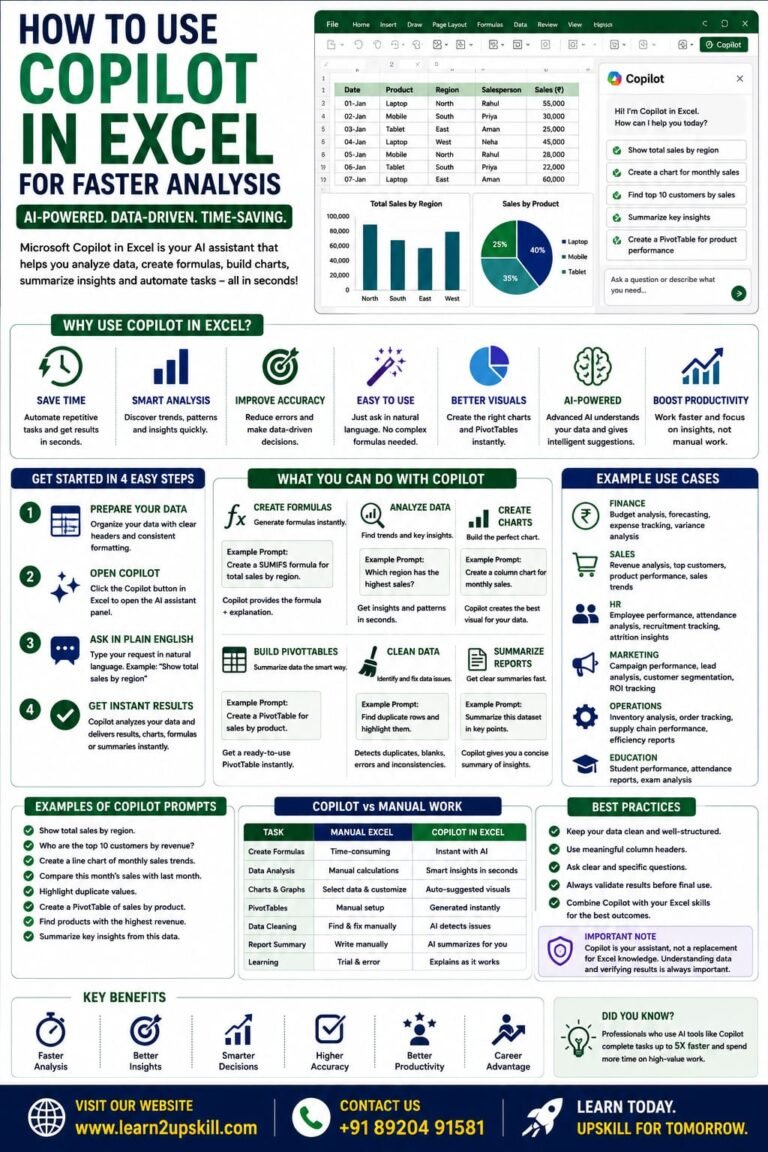
How to Use Copilot in Excel for Faster Analysis Learn how to use Microsoft Copilot in Excel to analyze data...
-
-
July 21, 2026
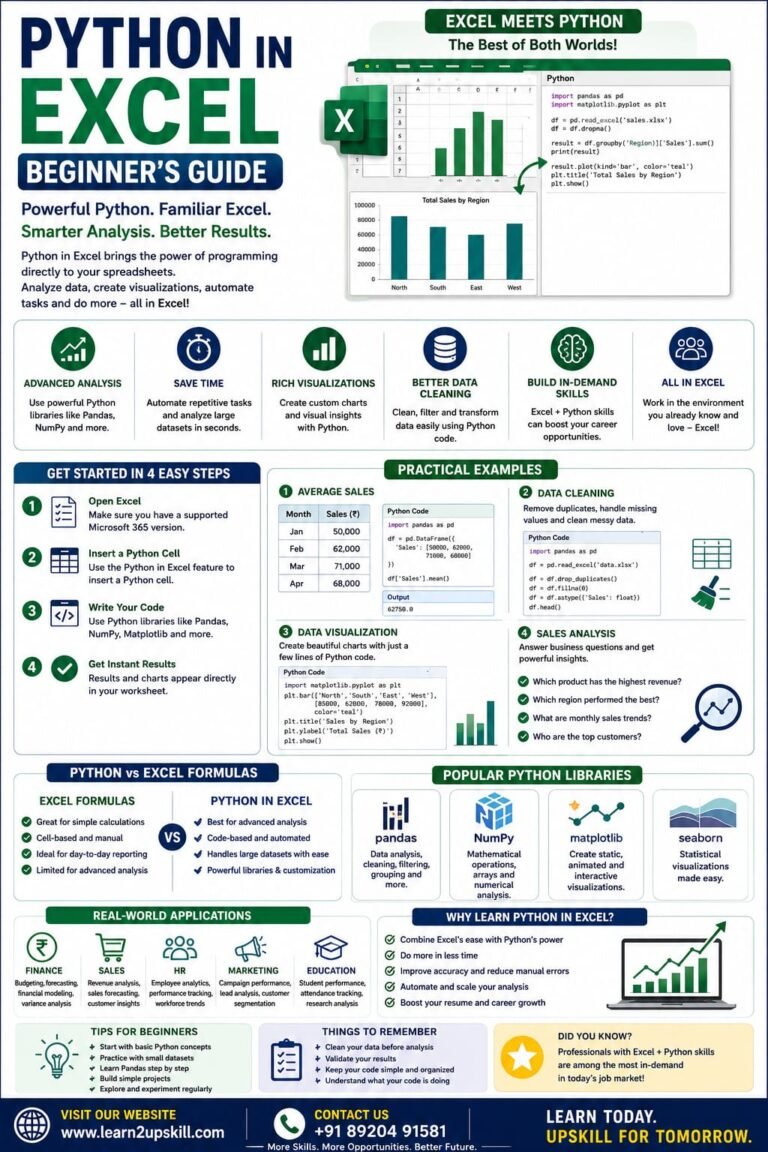
Python in Excel Learn how to use Python in Microsoft Excel with this beginner-friendly guide. Discover setup, syntax, examples, benefits,...
-
-
July 20, 2026
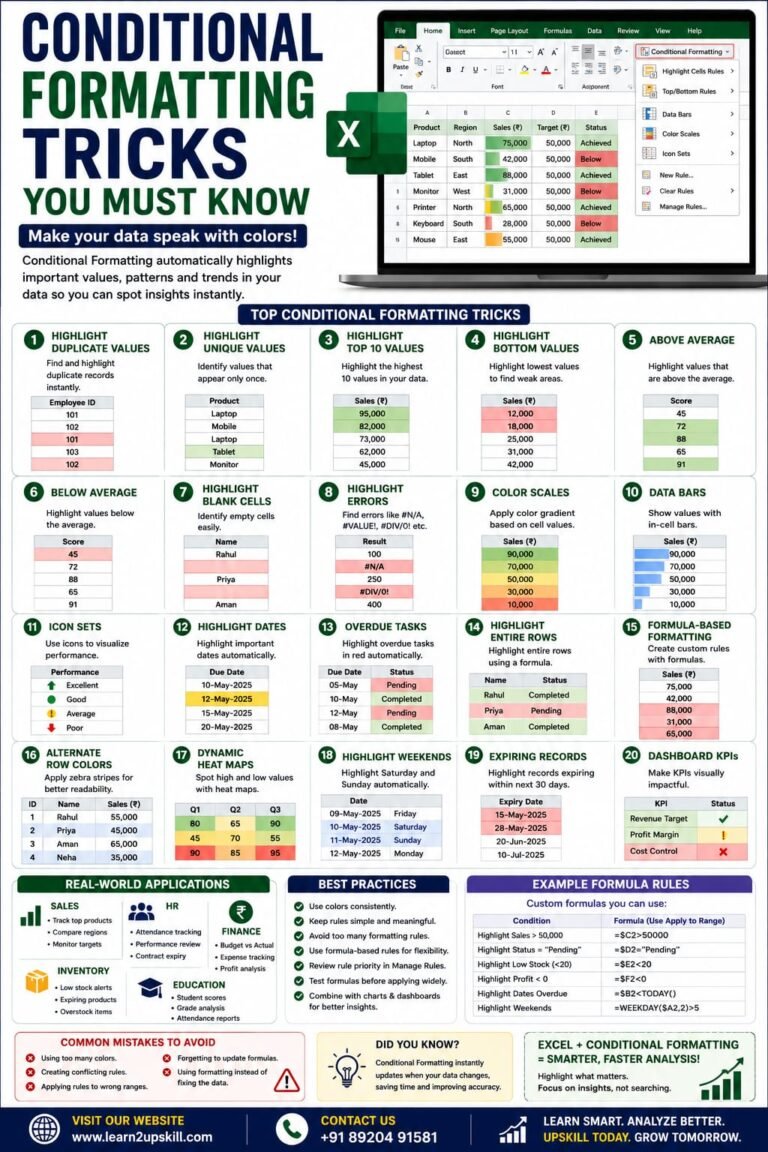
Conditional Formatting Tricks You Must Know) Learn the best Conditional Formatting tricks in Excel with practical examples. Highlight duplicates, overdue...
-
-
June 12, 2026